Manage Employment Status, Departments, And Designations In Payrun
 Noah Parker
11 Aug 2026
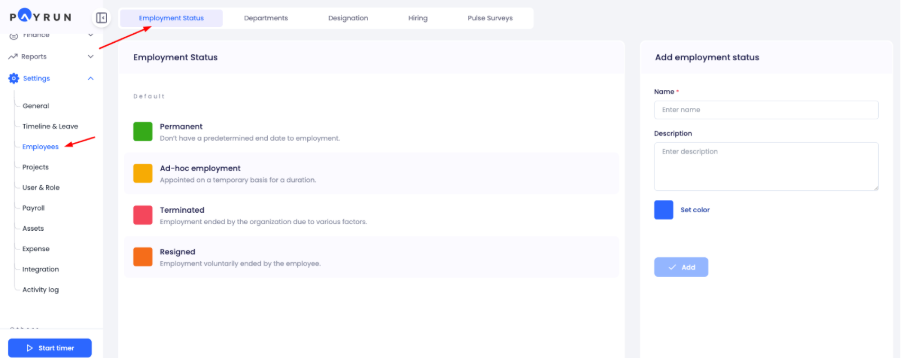
Payrun lets you manage key employee settings from Settings > Employees. You can create custom employment statuses, organize employees into departments, assign workshifts and department managers, and create designations.
Access Employee Settings
Go to Settings.
Select Employees.
Choose the tab you want to manage:
Employment Status
Departments
Designation
Manage Employment Status
The Employment Status tab contains Payrun's default employment statuses and any custom statuses you create.
Default statuses include:
Permanent: No predetermined end date to employment.
Ad-hoc employment: Appointed on a temporary basis for a duration.
Terminated: Employment ended by the organization.
Resigned: Employment voluntarily ended by the employee.
Custom employment statuses appear separately from the default statuses.
Add A Custom Employment Status
Open Settings > Employees > Employment Status.
Enter a Name. This field is required.
Add a Description if needed.
Select Set color and choose a color for the status.
Click Add.
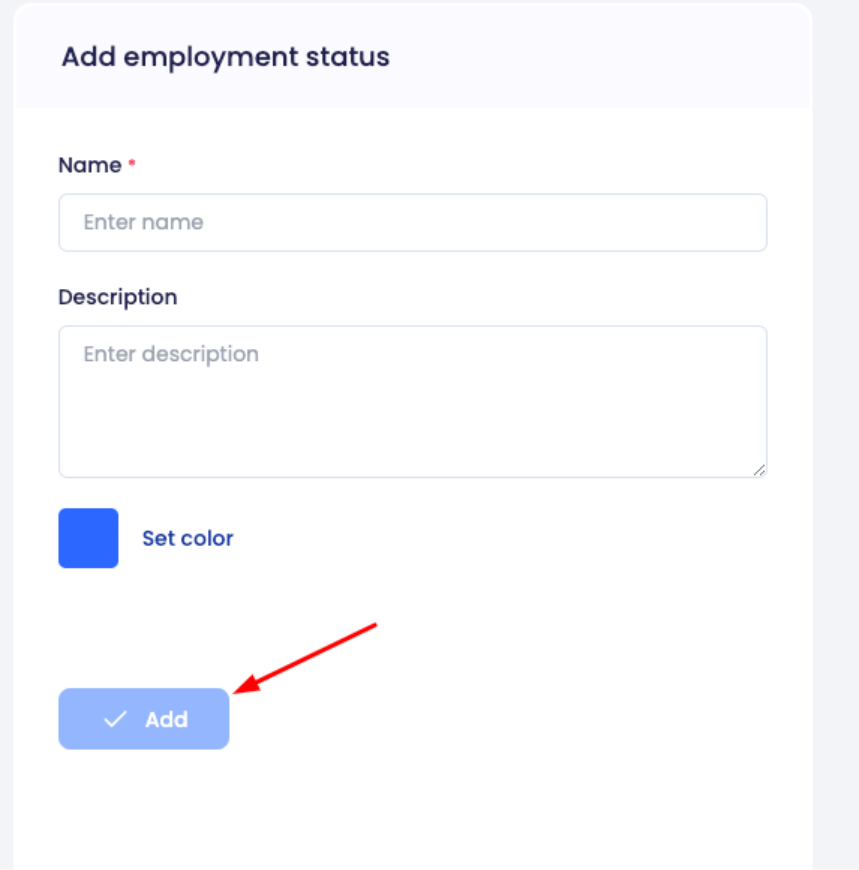
The new status will appear under the Custom section.
Edit An Employment Status
You can edit a custom employment status from the status list.
Open Employment Status.
Find the custom status you want to update.
Click the three-dot menu.
Select Edit.
Update the required information.
Save your changes.

Delete An Employment Status
Open Employment Status.
Find the custom status you want to remove.
Click the three-dot menu.
Select Delete.
Confirm the deletion if prompted.
Manage Departments
The Departments tab lets you create and organize departments. Departments can have a parent department, workshift, and department manager.
Payrun also provides two ways to view departments:
List view: Displays departments as individual entries.
Chart view: Displays the department structure as a hierarchy.
Add A Department
Open Settings > Employees > Departments.

Enter the Name of the department.
Select the Parent department.
Select the Workshift.
Select the Department manager.
Click Add.
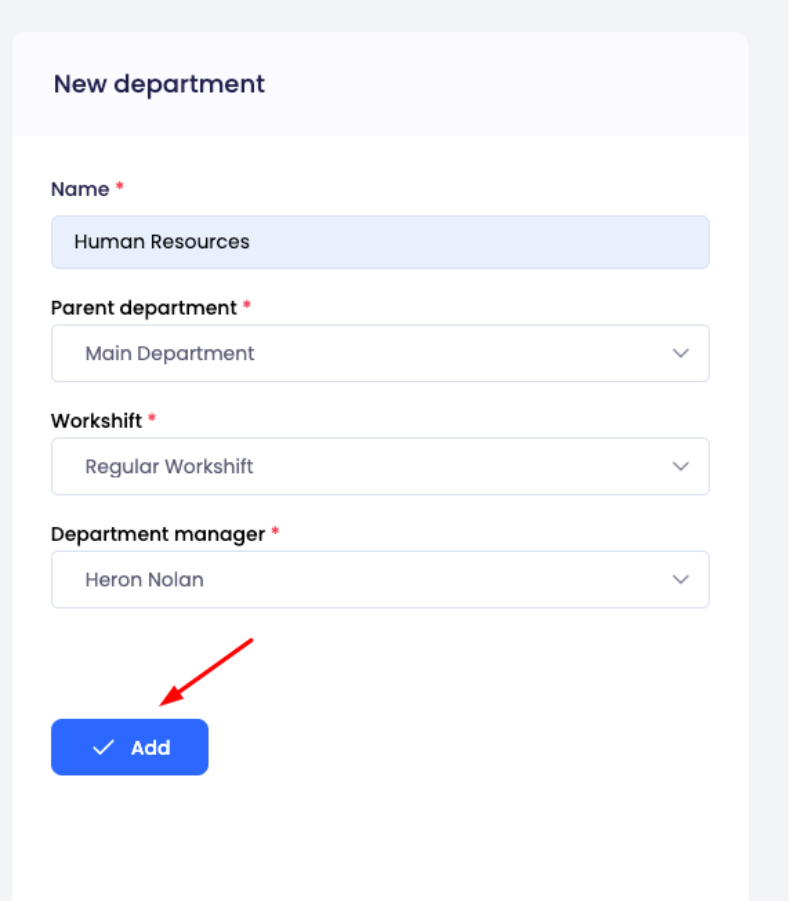
The Workshift and Department manager fields appear after a parent department is selected.
Edit A Department
Open Departments.
Find the department you want to update.
Click the three-dot menu.
Select Edit.
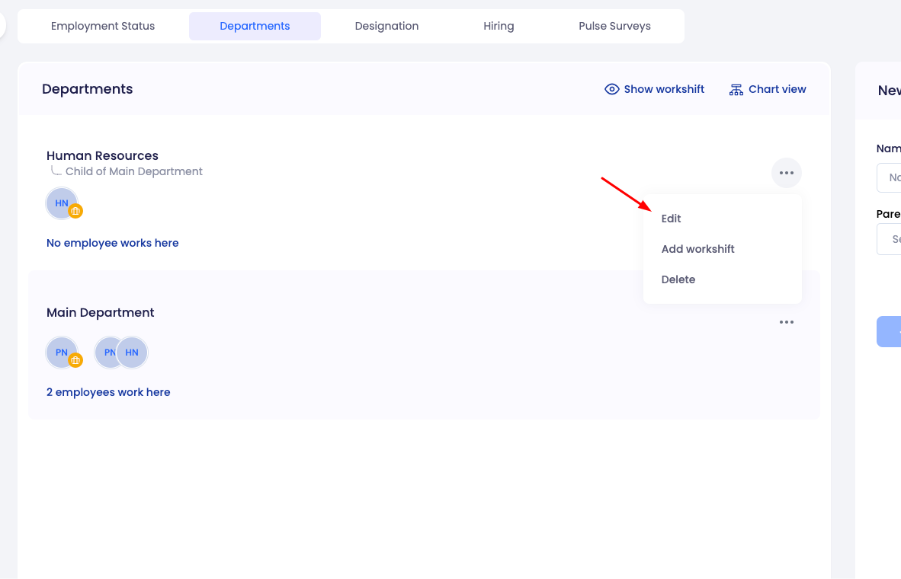
Update the department details.
Click Save.
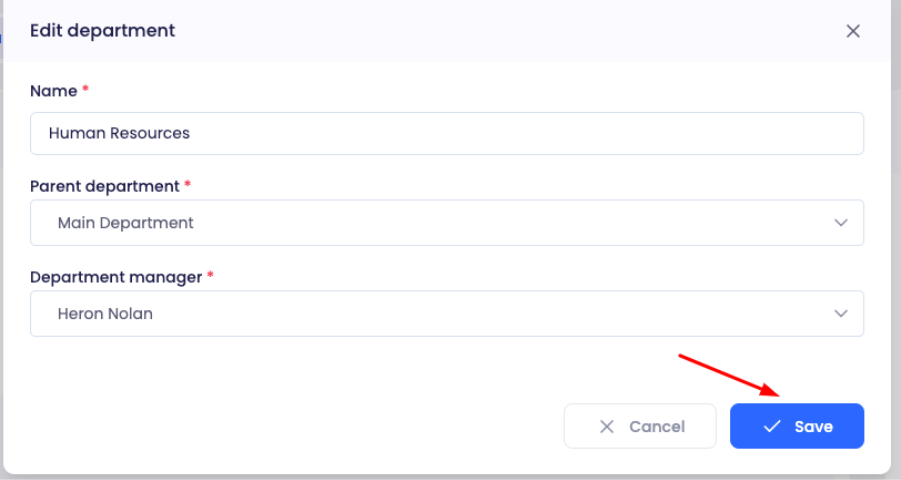
The edit form lets you update:
Name
Parent department
Department manager
Add A Workshift To A Department
You can assign a workshift to an existing department from the department's action menu.
Open Departments.
Find the department.
Click the three-dot menu.
Select Add workshift.

Select a Workshift.
Set the Effective duration by entering the start date and end date.
Select No end date if the workshift does not have an end date.
Click Save.

Set A Workshift With No End Date
Select No end date under Effective duration when the workshift should not have a specified end date.
When workshift details are displayed, Payrun shows the workshift name, its current status, effective date, and whether it has an end date.
View A Department's Workshift
You can show or hide workshift details from the Departments page.
Open Departments.
Click Show workshift.
Review the workshift information displayed under each department.

Click Hide workshift to collapse the workshift details again.
View Departments As A Chart
Use Chart view to see the department hierarchy.
Open Departments.
Click Chart view.

Review the department structure displayed in the hierarchy.

Click List view to return to the standard department list.
Delete A Department
Open Departments.
Find the department you want to remove.
Click the three-dot menu.
Select Delete.

Review the confirmation message.
Click Remove to permanently delete the department.

Warning: Deleting a department permanently removes it from Payrun.
If you want to switch any employee’s department you can read this article for detailed instruction- Move Employees To Another Department
Manage Designations
The Designation tab lets you create and manage employee designations.
Each designation can have a name and an optional description.
Add A Designation
Open Settings > Employees > Designation.
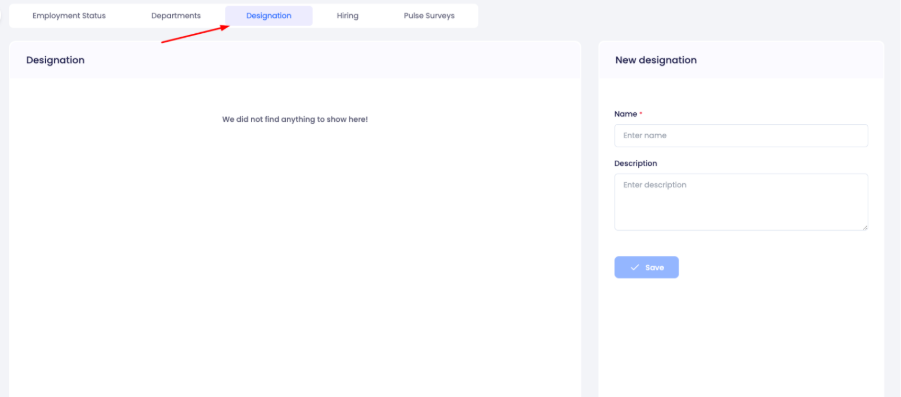
Enter a Name. This field is required.
Add a Description if needed.
Click Save.

The new designation will appear in the designation list.
Edit A Designation
Open Designation.
Find the designation you want to change.
Click the three-dot menu.
Select Edit.

Update the name or description.
Save your changes.
Delete A Designation
Open Designation.
Find the designation you want to remove.
Click the three-dot menu.
Select Delete.
Confirm the deletion if prompted.
Frequently Asked Questions
Where Can I Manage Employment Statuses In Payrun?
Go to Settings > Employees > Employment Status.
Can I Create A Custom Employment Status?
Yes. Enter a status name, optionally add a description, select a color, and click Add.
What Are The Default Employment Statuses In Payrun?
Payrun includes Permanent, Ad-hoc employment, Terminated, and Resigned as default employment statuses.
Can I Edit A Custom Employment Status?
Yes. Open the status's three-dot menu, select Edit, update the details, and save your changes.
Can I Create A Department?
Yes. Go to Settings > Employees > Departments, enter the department details, and click Add.
What Information Do I Need To Create A Department?
The department form requires a Name and Parent department. After selecting a parent department, you can select the Workshift and Department manager.
Can I Assign A Workshift To A Department?
Yes. Open the department's three-dot menu, select Add workshift, choose the workshift, set its effective duration, and click Save.
Can A Department Workshift Have No End Date?
Yes. Select No end date when adding the workshift.
How Can I See Department Workshifts?
Open Settings > Employees > Departments and click Show workshift.
Can I View My Departments As A Hierarchy?
Yes. Click Chart view on the Departments page to view the department structure as a hierarchy.
Can I Edit A Department?
Yes. Open the department's three-dot menu, select Edit, update the available details, and click Save.
Can I Delete A Department?
Yes. Select Delete from the department's three-dot menu and click Remove to permanently delete it.
Can I Create A Designation?
Yes. Open Settings > Employees > Designation, enter the designation name, optionally add a description, and click Save.
Can I Edit Or Delete A Designation?
Yes. Use the designation's three-dot menu to select Edit or Delete.