How To Assign An Asset To An Employee
 Noah Parker
21 Jun 2026
After adding assets to Payrun, you can assign them to employees. Asset assignments help you track who is using company equipment. They also create a clear record of ownership and responsibility. Whether it's a laptop, mobile phone, monitor, or office equipment, Payrun makes asset tracking simple and organized.
Follow the steps below to assign an asset to an employee.
Go To The Assets Page
Sign in to your Payrun account.
Click Assets from the left-side menu.

The Assets page displays all assets in your organization, along with their status and assignment details.
Find An Available Asset
Look through the asset list and locate the item you want to assign.
Assets that are not assigned to any employee will appear with an Available status.

Open The Asset Options Menu
Find the asset you want to assign.
Click the three-dot menu (⋯) in the Actions column.
A menu will appear with several options related to that asset.

Select Assign
Click Assign from the dropdown menu.

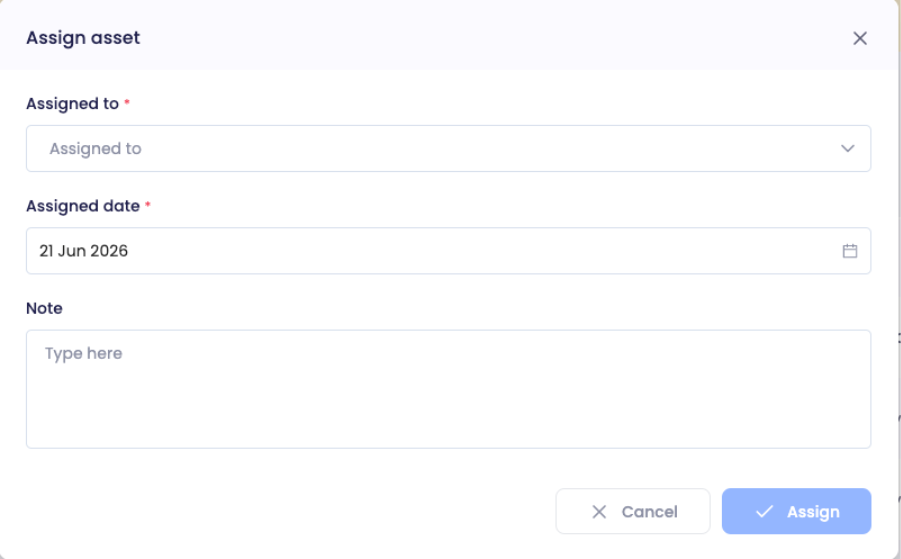
The Assign Asset window will open.
Choose The Employee
Under Assigned To, click the dropdown field to view available employees.

Select the employee who will receive the asset.
The list includes employee names, designations, and departments, making it easy to choose the correct person.
Set The Assignment Date
In the Assigned Date field, select the date when the asset is being handed over.

You can either:
Click the date field
Use the calendar picker
Keeping the correct assignment date helps maintain accurate asset records.
Add A Note (Optional)
The Note field can be used to record any additional information about the assignment.
For example:
Device issued with charger and accessories
Temporary assignment for a project
Replacement equipment provided
Asset condition at handover
Although optional, notes can be useful later when reviewing asset history.
Complete The Assignment
After reviewing the information:
Confirm the employee name.
Verify the assignment date.
Click Assign.

Payrun will save the assignment and update the asset record immediately.
Verify The Assignment
After the assignment is completed:
The asset status changes from Available to Assigned.
The employee's name appears in the Assigned To column.
The asset becomes linked to that employee's record.
You can return to the Assets page at any time to review assigned equipment.
Why Asset Assignment Matters
Keeping asset assignments up to date helps your organization:
Know who is responsible for each asset
Maintain accurate inventory records
Simplify employee onboarding and offboarding
Reduce the risk of lost or untracked equipment
Prepare for audits and internal reviews
Need To Reassign An Asset Later?
If an employee returns a device or moves to a different role, you can update the asset record and assign it to another employee when needed. Payrun keeps asset management simple by allowing you to track equipment throughout its lifecycle.