Slack Notification Channels In Payrun
 Noah Parker
20 Aug 2026
Notification Channels in Payrun let you send selected Payrun event notifications directly to your team's communication channels.
You can connect a supported provider, assign Payrun notification categories to specific channels, and choose exactly which events should send notifications.
Payrun currently provides channel connection options for Slack and Microsoft Teams.
Note: The setup steps below demonstrate the Slack connection and routing process. Microsoft Teams is also available as a notification channel, but its authorization flow is not covered in this guide.
Before You Connect A Notification Channel
Before you start, make sure you:
Can access Settings > Notification Channels in Payrun.
Have access to the Slack workspace you want to connect.
Have the required Slack authorization to approve the connection.
Payrun requires at least one connected workspace before category and event routing can be configured.
How To Access Notification Channels
To open the Notification Channels settings:
Sign in to Payrun.
Go to Settings from the left sidebar.
Select Notification Channels.

The page contains two main sections:
Channel connections — Connect and manage supported communication platforms.
Categories & channel routing — Choose where Payrun notifications go and which events trigger them.
How To Connect Slack
To connect a Slack workspace:
Go to Settings > Notification Channels.
Find Slack under Channel connections.
Click Connect.
Payrun redirects you to the Slack authorization page.
Select the workspace you want to connect.
Review the permissions requested for the integration.
Click Allow.

Return to Payrun to complete your notification routing setup.
Make sure you select the correct workspace before you authorize the connection.
How To Set Up Slack Routing
After you authorize Slack, Payrun opens the Set up Slack routing window.
The setup screen lists notification categories and lets you choose which Slack channel each category should use.
To configure Slack routing:
Find the Payrun category you want to configure.
Click Select a channel beside the category.
Choose a Slack channel from the dropdown.

Repeat the process for other categories you want to route.
Click Finish setup when you are done.
You can assign different categories to different Slack channels. For example, Attendance and Payroll notifications do not have to use the same channel.
Notification Categories
Depending on your Payrun configuration, available notification categories can include:
Attendance
Leave
Timesheet
Hiring
Organization
Payroll
Employee
Expense
Each category contains individual events that can be enabled or disabled separately.
Finish Setup Or Skip For Now
Payrun gives you two options during the initial Slack routing setup.
Finish Setup
Click Finish setup after you assign the channels you want to use.
The selected channel mappings become available under Categories & channel routing, where you can control individual events.
Skip For Now
Click Skip for now if you do not want to assign channels during the initial setup.
You can return to Settings > Notification Channels later and configure the required routing.

Important: Assigning a channel does not automatically start notifications. Individual events remain switched off until you enable them.
How Notification Routing Works
Payrun uses two separate controls for external notifications:
Channel mapping determines where the notification goes.
Event selection determines which activities send notifications.
For example, assigning the Attendance category to a Slack channel defines the destination. You must still enable Time log flagged, New time log submitted, or other Attendance events before Payrun sends those event notifications.
Both settings need to be configured for the notifications you want to receive.
How To Change A Category Channel
You can change a category's destination after the initial Slack setup.
To change the channel:
Go to Settings > Notification Channels.
Find the category under Categories & channel routing.
Click Channels beside the category.
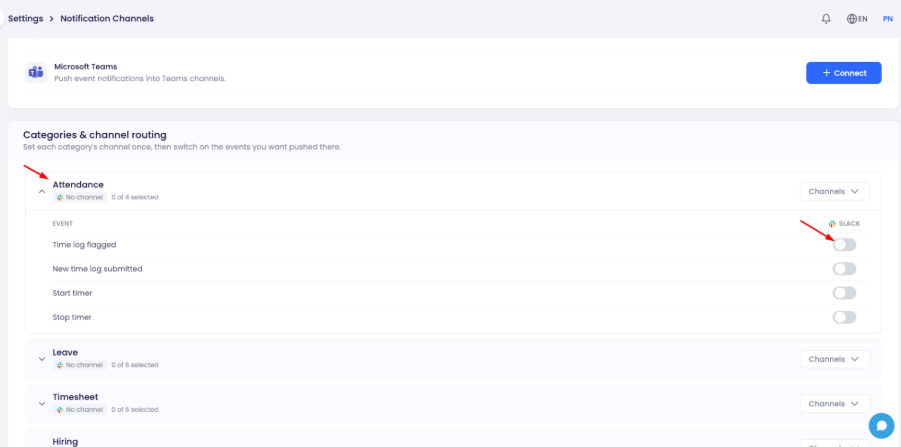
Select the Slack channel you want to use for that category.
Review the category to make sure the required events are enabled.
The selected channel appears below the category name after it has been assigned.
If no destination is configured, the category displays No channel.
How To View Events In A Category
Each notification category can be expanded to show its available events.
To view them:
Go to Settings > Notification Channels.
Find the required category.
Click the arrow beside the category name.
Review the individual events listed under the category.
Click the arrow again to collapse the category.
How To Enable Event Notifications
After you assign a channel, choose which events Payrun should send to it.
To enable an event:
Expand the required category.
Confirm that the correct channel is assigned.
Find the event you want to receive.
Turn on the switch under the connected provider.
Repeat the process for any additional events.
An enabled switch means that event has been selected for notifications.
An inactive switch means Payrun will not push that event through the configured provider.
How To Disable An Event Notification
You can stop a specific notification without disconnecting the provider or removing the category's channel.
Open Settings > Notification Channels.
Expand the relevant category.
Find the event you no longer want to receive.
Turn off its switch.
Other enabled events within the category can continue to send notifications.
How To Manage A Connected Slack Workspace
After Slack is connected, the Connect button changes to a green Connected status.
To review the connection:
Go to Settings > Notification Channels.
Click Connected beside Slack.
Payrun opens the Manage Slack window.
The window can show:
Connected Slack workspace
Connection status
Who connected the workspace
Connection date
You can also disconnect the workspace from this window.
How To Disconnect Slack
To remove the connected Slack workspace:
Go to Settings > Notification Channels.
Click Connected beside Slack.

Click Disconnect in the Manage Slack window.
Review the confirmation message.

Click Disconnect again to confirm.

Select Close if you want to cancel the action and keep Slack connected.
Common Notification Channel Issues
Slack Is Connected But No Notifications Arrive
Check both parts of the notification configuration.
Make sure the category has a Slack channel assigned and confirm that the required event switch is enabled. A connected Slack workspace alone does not activate event notifications.
A Category Shows No Channel
No channel means that the category does not currently have a destination channel.
Use the category's Channels control to assign a Slack channel.
A Category Shows 0 Of 4 Selected
A status such as 0 of 4 selected means none of the four available events in that category are currently enabled.
Expand the category and turn on the events you want Payrun to send.
Slack Was Connected But Routing Was Skipped
Return to Settings > Notification Channels.
Assign channels to the required categories and then enable the individual events you want to send.
Only Some Notifications Arrive
Expand the affected category and check its event switches.
Payrun sends only the events that have been enabled. Other events remain off even when the category already has a channel assigned.
Notifications Need To Go To Another Channel
Open the relevant category and use Channels to change its destination.
Review the enabled events afterward to make sure the category still matches your notification requirements.
Frequently Asked Questions
What Are Notification Channels In Payrun?
Notification Channels let you route selected Payrun event notifications to connected communication platforms such as Slack and Microsoft Teams.
Where Can I Find Notification Channel Settings?
Go to Settings > Notification Channels in Payrun.
Can I Send Different Categories To Different Slack Channels?
Yes. You can assign channels by notification category, allowing different types of Payrun events to go to different Slack channels.
Does Connecting Slack Automatically Start Notifications?
No. Connecting Slack only establishes the provider connection. You still need to assign channels and enable the individual events you want Payrun to send.
Does Selecting A Channel Automatically Enable Every Event?
No. Channel mapping and event activation are separate. Assign the channel first, then turn on the required event switches.
Can I Choose Which Payrun Events Are Sent To Slack?
Yes. Expand a notification category and use the individual event switches to choose which events should send Slack notifications.
Can I Turn Off One Notification Without Disconnecting Slack?
Yes. Turn off the switch for that specific event. Other enabled notifications can continue to use the Slack connection.
Can I Change A Notification Channel Later?
Yes. Open Settings > Notification Channels, locate the relevant category, and use its Channels control to change the destination.
Can I Skip Slack Routing During Initial Setup?
Yes. Click Skip for now. You can configure category channels and event notifications later from Notification Channels settings.
How Can I Check How Many Events Are Enabled?
Look at the selected-event count below the category name. For example, 2 of 4 selected means two of the four available events in that category are enabled.
Can I Disconnect Slack From Payrun?
Yes. Click Connected beside Slack, select Disconnect, review the affected routing, and confirm the disconnection.