How To Export Projects Report
 Noah Parker
01 Jul 2026
The Projects Report gives you a clear overview of project activities, employee contributions, task progress, and approved work hours in one place.
Managers, team leads, and administrators can use this report to see how work is distributed across projects and team members. It helps you track progress, review employee contributions, and monitor project workloads more easily.
The report includes multiple views. You can switch between them to see the same data in different ways. This helps you find the information you need more quickly.
Why Use The Projects Report?
The Projects Report helps you answer questions such as:
Which employees worked the most hours?
Which projects require more attention?
How many tasks are assigned to a project?
How much time was spent on a task?
Which employees contributed to a project?
What approved work hours should be included in reporting?
Instead of checking multiple screens, you can review everything from a single report page.
Before You Start
The report displays approved project activities only.
Make sure:
Projects have been created.
Tasks have been assigned.
Employees have submitted time logs.
Time logs have been approved.
If no approved work logs exist, the report may appear empty.
Open The Projects Report
Follow these steps to access the report:
Open Payrun.
Click Reports from the left sidebar.
Select Projects.

The Projects Report page appears.
Understand The Report Page
The report page contains four major sections:
Summary filters
Date filter
Group By options
Download option
Each section helps you narrow down and analyze report data.
Select A Date Range
The date filter appears at the top-right corner of the page.
You can:
View the current month.
Review previous months.
Select a custom date range.
All report information updates according to the selected period.
Filter Report Data
The top section displays available filters.
You can filter the report by:
Projects
Tasks
Employees
Applying filters helps you focus on specific information.
Example:
If you select one employee, the report only displays activities related to that employee.

Understand Approved Work Hours
Approved work hours represent time entries that have been reviewed and approved.
Only approved time logs appear in the report.
Pending or rejected time entries are excluded.
Choose A Report View
The Group By option allows you to view data in six different ways.
Employee
Project
Task
Employee & Project
Employee & Task
Time Logs
Each view answers different business questions.
Employee View
Use this view when you want to understand employee workloads and contributions.

The report displays:
Employee name
Designation
Total projects
Total tasks
Approved work hours
View Employee Details
Select Employee from Group By.
Click the expand arrow beside an employee.

The report displays:
Assigned projects
Total tasks
Approved work hours
Best For
Reviewing employee workload
Performance discussions
Resource planning
Example
A manager preparing for monthly evaluations can quickly identify employees with high or low workloads.
Project View
Use this view when you want to monitor project progress.

The report displays:
Project name
Number of tasks
Assigned employees
Approved work hours
View Project Information
Select Project.
Expand a project.

The report displays:
Project tasks
Assigned employees
Approved hours
Best For
Project monitoring
Team allocation
Progress reviews
Example
A team lead can review which employees contributed to a project and how much time was spent.
Task View
Use this view when you want to analyze individual tasks.
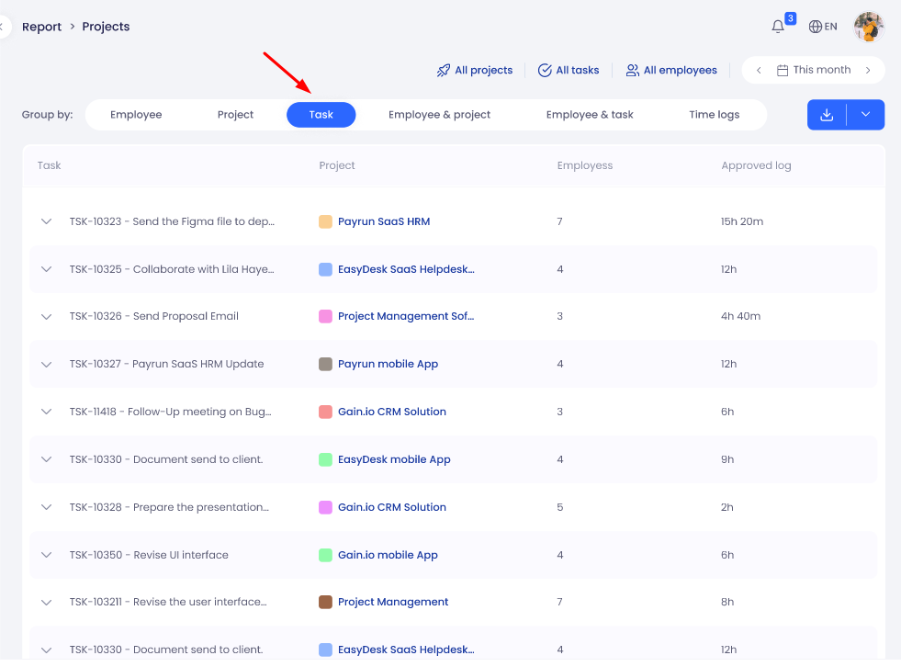
The report displays:
Task name
Project name
Number of employees
Approved work hours
View Task Activities
Select Task.
Expand a task.

The report displays:
Employee names
Start time
End time
Duration
Best For
Task analysis
Workload review
Effort estimation
Example
A manager can identify which tasks required the most effort.
Employee & Project View
Use this view when you want to understand employee contributions within projects.
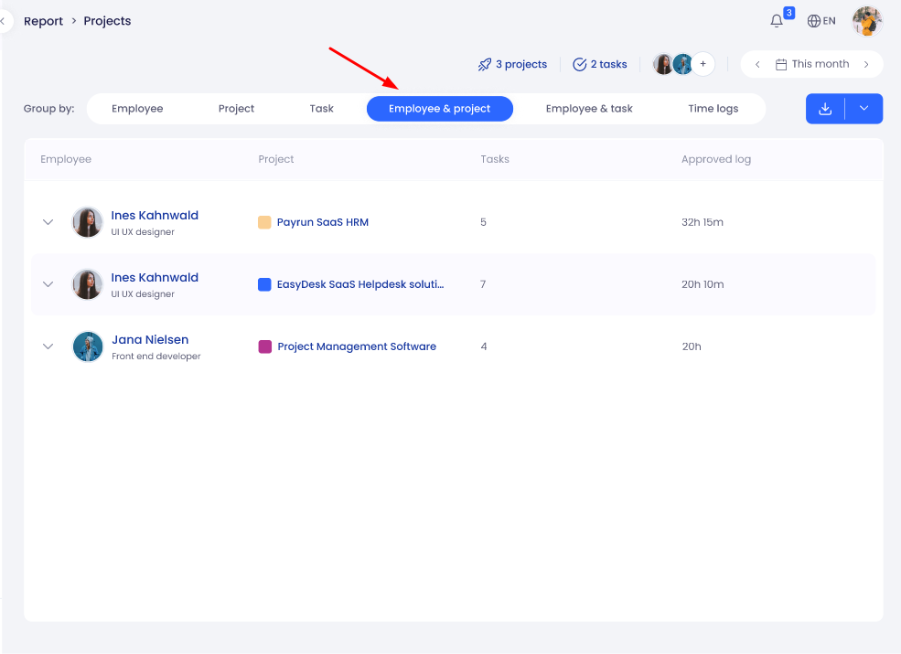
The report displays:
Employee name
Project name
Number of tasks
Approved work hours
View Task Details
Select Employee & Project.
Expand a record.

The report displays:
Task names
Approved hours
Best For
Contribution analysis
Project reviews
Employee evaluations
Example
Managers can compare contributions from multiple employees working on the same project.
Employee & Task View
Use this view when you want to understand how employees worked on specific tasks.

The report displays:
Employee name
Task name
Project name
Approved work hours
View Time Details
Select Employee & Task.
Expand a record.

The report displays:
Start date
End date
Duration
Best For
Task ownership
Individual effort analysis
Time verification
Example
Managers can review how much time each employee spent on a shared task.
Time Logs View
Use this view when you want to review all approved work sessions.

The report displays:
Employee name
Start date
End date
Task name
Duration
Every row represents an approved time entry.
Best For
Audits
Time tracking
Productivity analysis
Work verification
Example
Administrators can review daily work sessions for an entire team.
Which Report Should You Use?
If You Want To | Recommended View |
|---|---|
Review employee workloads | Employee |
Monitor project progress | Project |
Analyze tasks | Task |
Review employee contribution | Employee & Project |
Analyze employee effort | Employee & Task |
Review work sessions | Time Logs |
Common Use Cases
Find Total Work Hours For An Employee
Open the Employee view.
Locate the employee.
Expand the employee record.
Review approved work hours.
Review Project Progress
Open the Project view.
Select the project.
Expand the project.
Review tasks and approved hours.
Analyze Task Effort
Open the Task view.
Select the task.
Expand the task.
Review employee durations.
Export Monthly Project Data
Select the required month.
Apply filters if necessary.
Click Download.
Wait for the export email.
Export A Report
You can export the report at any time.

Follow these steps:
Select a date range.
Apply filters.
Click Download. You can export either pdf or excel files
After clicking download, you will get an email with a download link of the report. The exported report contains only the selected data.
Next Steps
After reviewing the Projects Report, you can:
Monitor employee workloads.
Track project progress.
Analyze task performance.
Review approved work hours.
Export reports for managers and stakeholders.
The Projects Report gives you a complete overview of project activities, employee contributions, and approved work hours from a single location.