Payrun Work-shifts Guide: Setup, Management, And Configuration
 Noah Parker
10 Aug 2026
Workshifts let you define working days and hours for your organization. You can create workshifts, assign them to departments, set a default workshift, and manage eligible workshifts from Settings → Timeline & Leave → Workshifts.
Access Workshift Settings
Log in to Payrun.
Go to Settings.
Select Timeline & Leave.
Open the Workshifts tab.
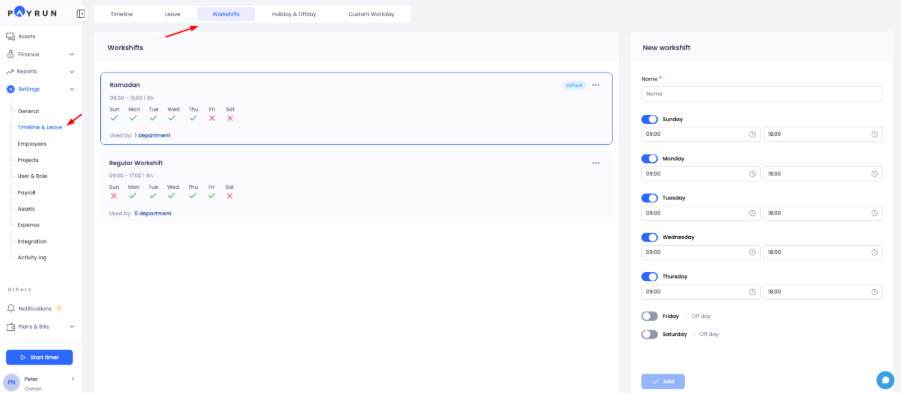
The Workshifts page shows your existing workshifts and the New workshift form.
Create A Workshift
Go to Settings → Timeline & Leave → Workshifts.
Enter a name in the Name field.
Turn on the toggle for each working day.
Set the start time and end time for each working day.
Leave the toggle off for days that should remain off days.
Click Add.

Payrun displays a confirmation message after the workshift is added successfully.
Set Working Days And Hours
Each day has its own toggle and time fields.
Turn the toggle on to make the day a working day.
Turn the toggle off to mark the day as an Off day.
Use the first time field to set the start time.
Use the second time field to set the end time.
You can set different working hours for each enabled day.
Assign A Workshift To A Department
You can assign a workshift to a department and define how long the assignment should remain effective.
Find the workshift you want to assign.
Click its three-dot menu.
Select Department.

Click Add department.
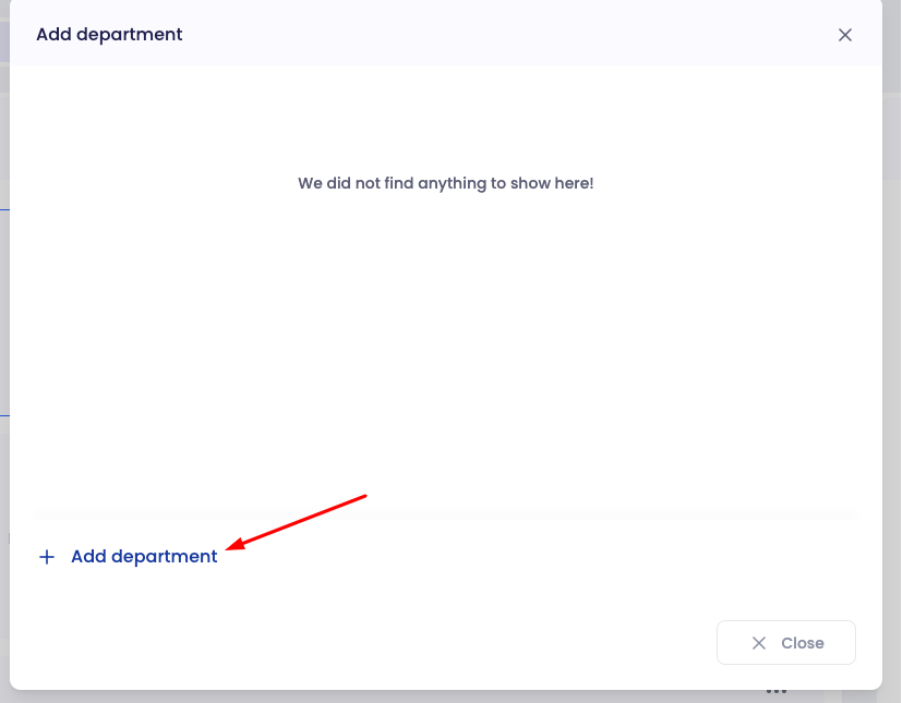
Select a department from Department.
Set the Effective duration by choosing a start date and end date.
Select No end date if the assignment should remain active without an end date.
Choose whether to assign the workshift to child departments.
Click Save.

When the effective duration ends, Payrun automatically switches the department to the default workshift if no other workshift is assigned.
Assign The Workshift To Child Departments
The department assignment form includes Assign workshift to child departments?
Select:
Yes to assign the workshift to the selected department and its child departments.
No to assign it only to the selected department.
Edit A Workshift
You can edit a workshift if it is eligible for modification.
Open the workshift's three-dot menu.
Select Edit.
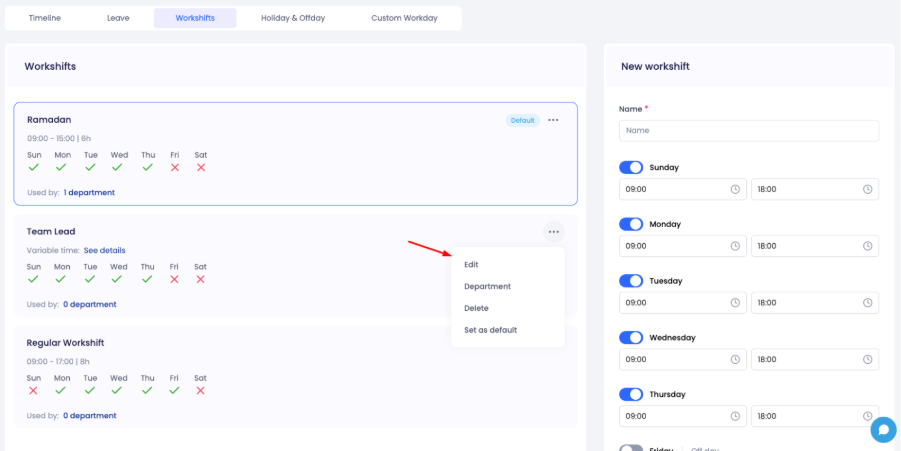
Update the workshift name, working days, or working hours.
Click Save.

Why Can't I Edit A Workshift?
Payrun does not allow active or past workshifts to be edited. The restriction protects the accuracy of existing timelog data.

If Payrun displays “You can't edit [workshift name]”, the workshift cannot be modified.
Delete A Workshift
You can permanently delete an eligible workshift from its three-dot menu.
Open the workshift's three-dot menu.
Select Delete.

Review the deletion confirmation.
Click Remove.

Why Can't I Delete A Workshift?
Payrun does not allow active or past workshifts to be deleted because modifying historical workshift data could affect the accuracy of timelog records.

If Payrun displays “You can't delete [workshift name]”, the workshift cannot be deleted.
Set A Workshift As Default
You can set an eligible workshift as the default workshift for your organization.
Open the workshift's three-dot menu.
Select Set as default.

Review the warning message.
Click Confirm.

Payrun warns that changing the default workshift can affect the working hours of all departments assigned to it.
The current default workshift displays a Default label.
Frequently Asked Questions
How Do I Create A Workshift?
Go to Settings → Timeline & Leave → Workshifts, enter a workshift name, select the working days, set the start and end times, and click Add.
How Do I Set An Off Day?
Turn off the toggle beside the relevant day. Payrun displays it as Off day.
Can I Set Different Hours For Each Day?
Yes. Each enabled day has separate start and end time fields, so you can configure different working hours for different days.
How Do I Assign A Workshift To A Department?
Open the workshift's three-dot menu, select Department, choose the department, set the effective duration, and click Save.
What Happens When A Department's Workshift Assignment Ends?
Payrun automatically switches the department to the default workshift if no other workshift is assigned.
Can I Assign A Workshift To Child Departments?
Yes. Select Yes under Assign workshift to child departments? when assigning the workshift to a department.
How Do I Edit A Workshift?
Open the workshift's three-dot menu, select Edit, make the required changes, and click Save. Active or past workshifts cannot be edited.
Why Can't I Edit A Workshift?
Active or past workshifts cannot be modified because Payrun protects the accuracy of timelog data.
How Do I Delete A Workshift?
Open the workshift's three-dot menu, select Delete, and click Remove to confirm.
Why Can't I Delete A Workshift?
Active or past workshifts cannot be deleted because Payrun protects the accuracy of timelog data.
How Do I Change The Default Workshift?
Open the workshift's three-dot menu, select Set as default, and click Confirm.
What Happens When I Change The Default Workshift?
Changing the default workshift can affect the working hours of all departments assigned to the default workshift. Review the warning before confirming the change.