Payrun User & Role Guide: Access, Permissions, And Management
 Noah Parker
13 Aug 2026
The User & role settings in Payrun let you manage who can access your organization and what they can do.
You can invite users, assign roles, edit user information, change a user's email, deactivate access, and manage permissions for different roles.
Open User And Role Settings
To access the settings:
Go to Settings.
Select User & role.
Choose Users or Roles at the top.
Use Users to manage individual users. Use Roles to review and control role permissions.
Manage Users
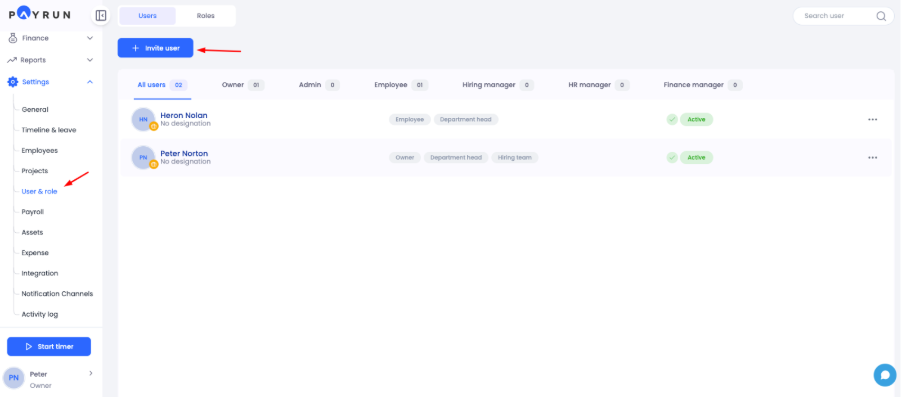
The Users tab shows the people who have access to your Payrun organization.
You can see each user's name, assigned roles, additional responsibilities, and current status.
The role filters at the top help you find users by role. You can also use the Search user field to find a specific person.
Invite A New User
To add someone to Payrun:
Go to Settings → User & role → Users.
Click Invite user.
Select the required Role.
Enter the user's Email.
Add an Employee ID if needed.
Select the Joining date.
Choose an Employment status.
Select a Designation if needed.
Choose the Department.
Click Save.

Fields marked with an asterisk (*) are required.
Note: If you invite a user to a role other than Employee and want their payroll and workforce information to be counted, make sure to select the Employee role as well.
Find And Filter Users
Payrun provides several ways to find users quickly.
Use the Search user field when you know the person's name.
You can also use the role filters above the user list, such as Owner, Admin, Employee, Hiring manager, HR manager, and Finance manager.
The number beside each filter shows how many users are listed under that role.
Select All users to return to the complete user list.
Edit A User
You can update an existing user's information from the Users tab.
To edit a user:
Find the user.
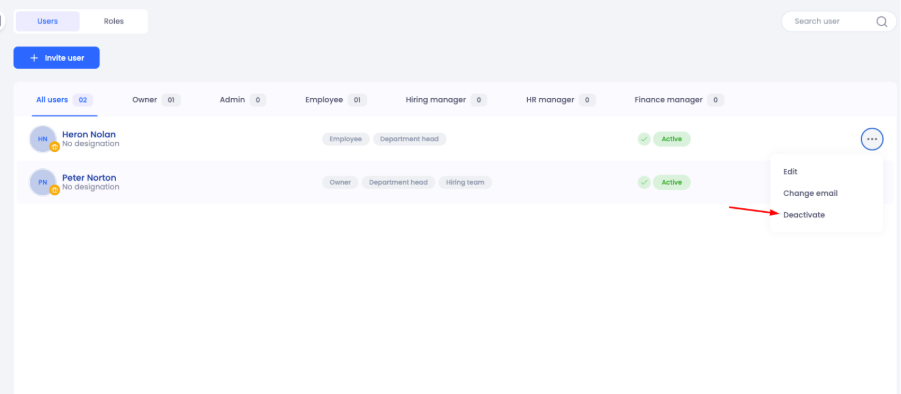
Click the three-dot menu on the right.
Select Edit.

Update the required information.
Click Save.

The Edit user window includes:
Role
First name
Last name
Employee ID
Joining date
Employment status
Designation
Department
Fields marked with an asterisk (*) are required.
Change A User's Email
Payrun provides a separate option for changing a user's email address.
To change an email:
Go to Settings → User & role → Users.
Find the user.
Click the three-dot menu.
Select Change email.

Enter your password in the Confirm your password window.
Click Confirm.

Enter the new email address.
Click Save.

The password confirmation adds an extra verification step before the email can be changed.
Deactivate A User
Deactivate a user when you need to disable their access to Payrun.
To deactivate someone:
Open Settings → User & role → Users.
Find the user.
Click the three-dot menu.
Select Deactivate.
Review the confirmation message.
Click Deactivate to confirm.

Payrun warns that the user's login will be permanently disabled after this action.
Use Cancel if you do not want to continue.
Understand Roles In Payrun
Open the Roles tab to see the available roles and their permissions.
Each role card shows the number of users added to that role and includes a View permissions option.
The available role cards shown in Payrun include:
All roles
Owner
Department head
Employee
Hiring team
Select View permissions to see the permissions assigned to a role.
View Permissions Across All Roles
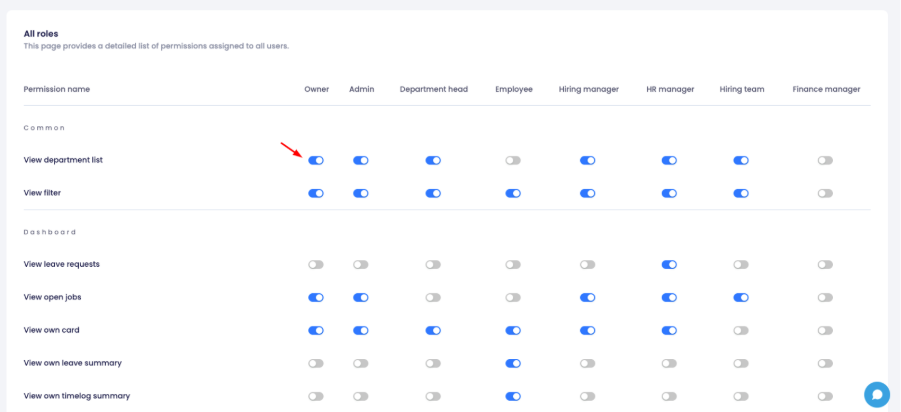
The All roles permission page provides a side-by-side view of permissions across roles.

Each row represents a permission. Each column represents a role.
A blue toggle means the permission is enabled for that role. A gray toggle means it is disabled.
The comparison can include roles such as:
Owner
Admin
Department head
Employee
Hiring manager
HR manager
Hiring team
Finance manager
Use this view when you want to compare access across multiple roles.
Manage Permissions For A Specific Role
You can also open a specific role and manage its permissions separately.
To manage role permissions:
Go to Settings → User & role → Roles.
Find the required role.
Click View permissions.
Find the permission you want to change.
Turn the permission toggle on or off.
A blue toggle indicates that the permission is enabled. A gray toggle indicates that it is disabled.
Permissions are organized into sections such as Common and Organization user, with additional permission groups available further down the page.
Examples of visible permissions include:
View filter
View department list
Search employee
View employee attendance summary
View employee profile
View own profile
Change user email
The available permissions and their default states can differ by role.
Understand The Owner Role
The Owner role is described in Payrun as having full access for control and oversight of the system.
Open Roles → Owner → View permissions to review its permissions.

You can use the toggles beside individual permissions to see or control which actions are enabled.

Understand The Department Head Role
The Department head role is designed for department-level management.
Payrun states that a department manager can access the department's features and manage employees in that department. Access also covers child departments created under that department.
Open Roles → Department head → View permissions to review the available access.

Understand The Employee Role
The Employee role focuses on access to the employee's own information.
Payrun describes the role as providing access to available modules and features with the employee's personal data only.
For example, View own profile can be enabled while organization-wide permissions can remain disabled.
Open Roles → Employee → View permissions to review the full permission list.

Understand The Hiring Team Role
The Hiring team role supports the recruitment process.
Payrun describes Hiring team members as people responsible for assessing applications, providing candidate reviews, and giving ratings for a specific job.
Open Roles → Hiring team → View permissions to review or adjust its permissions.

Reset Role Permissions To Default
Individual role permission pages include a Reset to default option.
Use it when you want to return the selected role's permissions to their default configuration.

Because resetting permissions can replace your current permission choices, review the role before using this option.
Common User And Role Questions
How Do I Add A User In Payrun?
Go to Settings → User & role → Users and click Invite user. Select a role, complete the required user details, and click Save.
How Do I Assign A Role To A User?
Select the required role when you invite a user. For an existing user, open the three-dot menu, select Edit, update the role selection, and click Save.
How Do I Edit A User?
Go to Settings → User & role → Users, find the user, and click the three-dot menu. Select Edit, make your changes, and click Save.
How Do I Change A User's Email?
Open the user's three-dot menu and select Change email. Confirm your password, enter the new email address, and click Save.
How Do I Deactivate A User?
Find the user under Settings → User & role → Users. Open the three-dot menu, select Deactivate, and confirm the action.
How Do I Find A Specific User?
Use the Search user field in the Users tab. You can also select one of the role filters to narrow the user list.
Where Can I See User Permissions?
Go to Settings → User & role → Roles. Click View permissions under All roles for a comparison or under a specific role to see that role's permissions.
How Do I Give A Role Access To A Permission?
Open Roles, select View permissions for the required role, and turn on the toggle beside the permission.
How Do I Remove A Permission From A Role?
Open the role's permission page and turn off the toggle beside the permission you want to remove.
What Does A Blue Permission Toggle Mean?
A blue toggle means the permission is enabled. A gray toggle means the permission is disabled.
How Do I Restore Default Role Permissions?
Open the required role's View permissions page and use Reset to default to return its permissions to the default configuration.