Payrun Custom Workday Guide: Setup, Rules, And Usage
 Noah Parker
11 Aug 2026
Custom Workday lets you add a workday for a department by setting a specific date or date range and defining the start and end times.
You can create a single-day or multiple-day workday, apply it to associated child departments, and edit or delete an existing workday when needed.
How To Access Custom Workday
Go to Settings.
Select Timeline & Leave.
Open the Custom Workday tab.

The Custom Workday page displays existing workdays with their date, duration, department, and available actions.
How To Add A Custom Workday
Open Custom Workday.
Click Add new.

Select a department.
Under Assign workday to child departments?, select:
Yes to apply the workday to all associated child departments.
No to apply it only to the selected department.
Select Single day or Multiple day.
Enter the required date and time details.
Click Add.
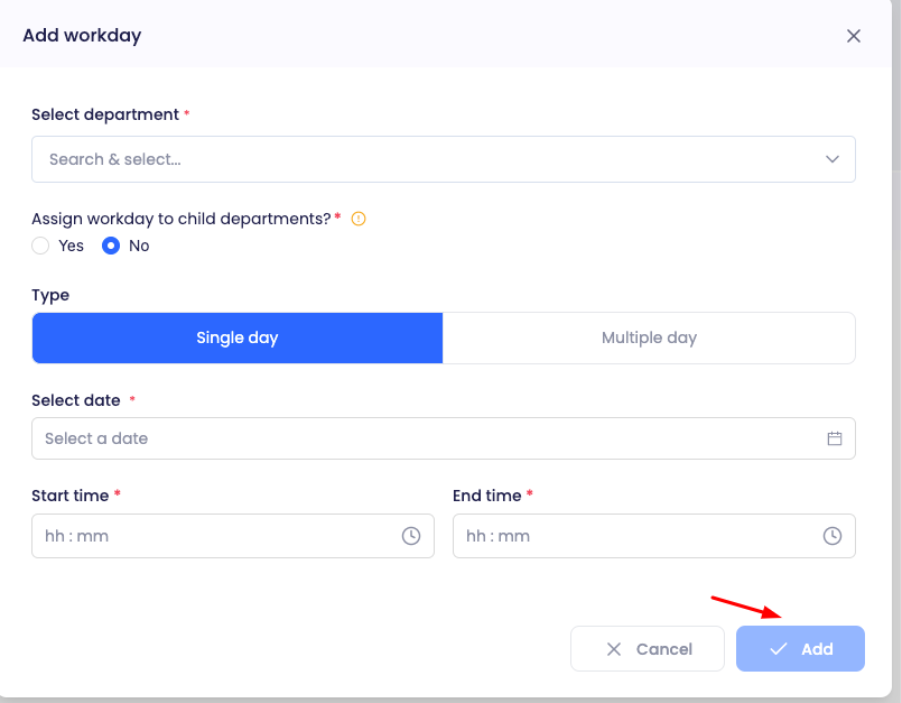
Add A Single-Day Workday
Select Single day when the workday applies to one date.

Enter the following:
Select date: Choose the workday date.
Start time: Enter the workday start time.
End time: Enter the workday end time.
Click Add to create the workday.
Add A Multiple-Day Workday
Select Multiple day when the workday covers a date range.

Enter the following:
Start date: Choose the first date.
End date: Choose the last date.
Start time: Enter the workday start time.
End time: Enter the workday end time.
Click Add to create the workday.
How To Assign A Workday To Child Departments
The Assign workday to child departments? option determines which departments receive the custom workday.

Select Yes to automatically apply the workday to all associated child departments.
Select No to apply the workday only to the selected department.
Choose the option that matches how broadly the workday should apply.
How To Edit A Custom Workday
You can update an existing workday from the Custom Workday list.
Open Custom Workday.
Find the workday you want to change.
Click the three-dot menu under Actions.
Select Edit.

Update the required details.
Click Save.

How To Delete A Custom Workday
You can permanently remove a custom workday from the Custom Workday list.
Open Custom Workday.
Find the workday you want to remove.
Click the three-dot menu under Actions.
Select Delete.

Click Remove on the confirmation message.

Note: Deleting a workday permanently removes the selected workday from your system.
Frequently Asked Questions
What Is Custom Workday In Payrun?
Custom Workday lets you add a workday for a department by specifying a date or date range and start and end times.
How Do I Add A Custom Workday?
Go to Settings > Timeline & Leave > Custom Workday, click Add new, select a department, choose the workday type, enter the required date and time details, and click Add.
How Do I Add A Single-Day Workday?
Select Single day, choose the date, enter the Start time and End time, and click Add.
How Do I Add A Multiple-Day Workday?
Select Multiple day, choose the Start date and End date, enter the Start time and End time, and click Add.
What Does Assign Workday To Child Departments Mean?
Selecting Yes applies the custom workday to all associated child departments. Selecting No applies it only to the selected department.
Can I Edit A Custom Workday?
Yes. Open the three-dot menu beside the workday, select Edit, update the required details, and click Save.
Can I Delete A Custom Workday?
Yes. Select Delete from the workday's three-dot menu, then click Remove to permanently delete it.
What Happens When I Delete A Custom Workday?
The selected workday is permanently deleted from your system.