Payroll General And Salary Structure Settings In Payrun
 Noah Parker
20 Aug 2026
Payrun’s Payroll settings let you choose how salaries are calculated and create salary structures for different compensation setups.
You can configure:
Salary calculation method
Base salary calculation
Leave category
Overtime policy
Earnings
Deductions
Auto Payroll
This guide covers the General and Salary Structure settings.
Where To Find Payroll Settings
Go to:
Settings > Payroll
The Payroll settings page includes General, Salary Structure, Earnings & Deductions, and Auto Approval sections.
Salary Calculation Method
The General section controls how Payrun determines the working days or hours used for salary calculations.
Payrun provides only one method to salary calculation that is based on your actual working days
To check:
Go to Settings > Payroll.
Find the General section.

Create A Salary Structure
The Salary Structure section lets you define the compensation rules that apply to a salary structure.
You may see both Default and Custom salary structures on the Payroll settings page.
To create a custom structure:
Go to Settings > Payroll.
Find Salary Structure.
Click Add new.
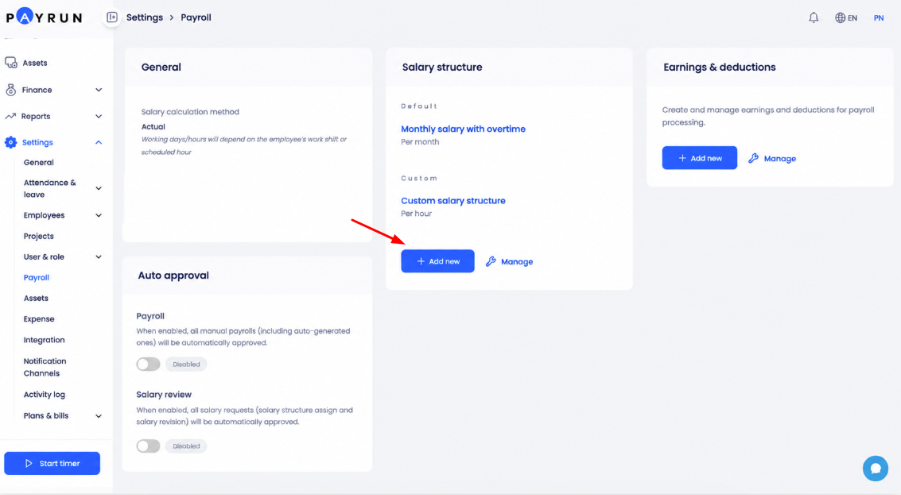
Payrun divides the setup into three stages:
Structure setup
Auto Payroll setup
Preview & confirm
Complete The Structure Setup
Start by entering a Structure name.
Choose a clear name that helps you identify the salary structure later.
Next, configure the leave category and base salary calculation.

Choose The Leave Category
Under Leave category, select:
Paid
Unpaid
Select the option that applies to the salary structure.
Choose The Base Salary Calculation
Under Calculate Base salary, choose how the base salary should be calculated.
Available options are:
Per hour
Per day
Per month
Per year
Select the option that matches the salary structure you want to create.
Set The Overtime Policy
The Overtime policy controls overtime for the salary structure.
Turn on Allow overtime if overtime should apply.
After you enable it, choose an Overtime type.
The available options include:
% of Base salary (hourly)
Fixed amount (hourly)
Enter the required amount or percentage in the Value field.
Note: An overtime adjustment can affect the hourly rate corresponding to the base salary amount.
Turn off Allow overtime if the salary structure does not require an overtime policy.
Add Earnings
The Earning policy lets you add earnings to the salary structure.
An earning added here will automatically become part of the employee's total compensation when the salary structure applies.
To add an earning:
Find the Earning policy section.
Open the Earning name dropdown.
Select the required earning.
Click Add new earning if you need another one.

You can add multiple earnings to the structure.
Select Remove this earning to remove an earning you no longer need.
Add Deductions
The Deduction policy lets you add deductions to the salary structure.
A deduction added here will automatically be deducted from the employee's total compensation when the salary structure applies.
To add a deduction:
Find the Deduction policy section.
Open the Deduction name dropdown.
Select the required deduction.
Configure the available deduction options.
Click Add new deduction if you need another deduction.

You can add multiple deductions to the structure.
Select Remove this deduction to remove one.
Choose The Deduction Type
Depending on the selected deduction, you may see options such as:
% of base salary
Fixed amount (monthly)
Choose the type that matches the deduction rule.

If you select % of base salary, enter the required percentage in the Value field.
If you select Fixed amount (monthly), enter the fixed deduction amount in the Value field.
Set The Pro-Rated Option
Some deductions include a Pro-rated option.
Use the toggle to enable or disable pro-rating for that deduction according to your payroll policy.
After you finish the Structure setup, click Save & Next.

Set Up Auto Payroll
The Auto Payroll setup stage controls automatic payroll generation for the salary structure.
Turn on Auto generate monthly payroll if you want Payrun to generate monthly payroll automatically.
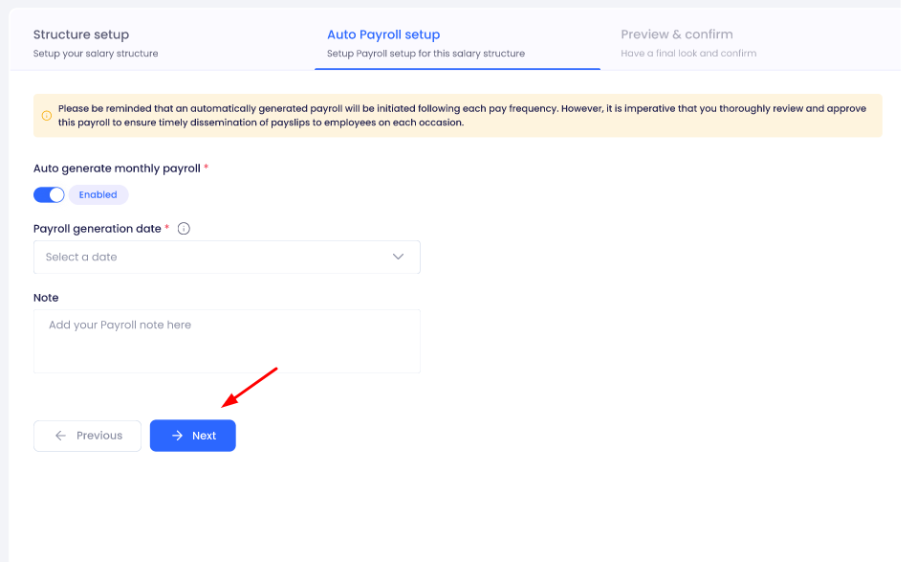
Choose The Payroll Generation Date
After you enable Auto Payroll:
Open Payroll generation date.
Select the required date.
Add a Note if needed.
Click Next.
The selected date determines when the monthly payroll will be generated for the salary structure.
Important: An automatically generated payroll should still be reviewed and approved before payslips are distributed.
Auto Payroll Vs Auto Approval
Auto Payroll and Auto Approval are separate settings.
Auto Payroll controls automatic payroll generation for a salary structure.
Auto Approval appears separately on the main Payroll settings page and controls payroll approval behavior.
Do not assume that enabling Auto Payroll automatically approves the generated payroll.
Preview And Confirm The Salary Structure
The final stage is Preview & confirm.
Review the salary structure before you save it.
The preview can show the configured:
Salary structure information
Earning details
Deduction details
Auto Payroll setup
Pay frequency
Payroll starting or generation date
Note
Click Previous if you need to return to an earlier step.
Click Save when the information is correct.
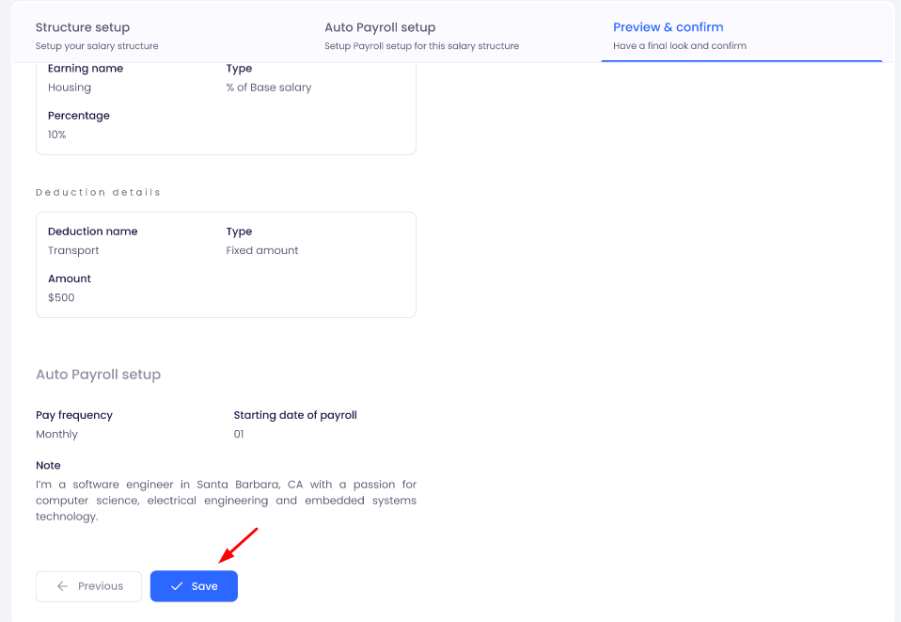
The salary structure will then be available from the Salary Structure section under Payroll settings.
Manage Existing Salary Structures
Go to Settings > Payroll and find the Salary Structure section.
Click Manage to access the available management options for existing salary structure.
Click Add new whenever you need to create another custom salary structure.
You can enable or disable a salary structure from this settings.
Common Questions
Why Does An Employee's Hourly Salary Change Each Month?
Check the salary calculation method under Settings > Payroll > General.
When Actual is selected, working days or hours depend on the employee's work shift or scheduled hours. The employee's hourly salary may therefore not remain the same each month.
What Is The Difference Between Fixed Days And Actual?
Fixed days uses the average working days per month that you configure.
Actual uses working days or hours based on the employee's work shift or scheduled hours.
Can I Add Multiple Earnings To A Salary Structure?
Yes. Click Add new earning under the Earning policy to add another earning.
Can I Add Multiple Deductions To A Salary Structure?
Yes. Click Add new deduction under the Deduction policy to add another deduction.