How To Manage Pulse Survey Questions
 Noah Parker
30 Jul 2026
Manage Pulse Survey Questions to keep employee feedback relevant and up to date. You can add new questions, edit existing ones, reorder their display, or remove questions that are no longer needed.
Before You Begin
Make sure you have permission to access Settings in Payrun.
Employee Pulse Surveys should already be enabled.
Open The Survey Question Manager
Go to Settings from the left navigation menu.
Select Employees.
Open the Pulse Surveys tab.

Under Survey Questions, click Manage.

The Survey Questions window opens, where you can manage all pulse survey questions.
Add A New Survey Question
Open the Survey Questions window.
Scroll to the Add new question field.
Enter your survey question.
Click the + icon to add it to the list.
Click Save.

A success message appears after the questions are updated.
Edit A Survey Question
Open the Survey Questions window.
Click inside an existing question.
Update the question text.
Click Save.
The updated question will be used in future pulse surveys.
Reorder Survey Questions
You can change the order in which questions appear.
Open the Survey Questions window.
Drag the reorder handle beside a question.
Move the question to the desired position.
Release it.
Click Save.

The new order will be used for future pulse surveys.
Delete A Survey Question
Open the Survey Questions window.
Click the Delete icon next to the question.
Review the confirmation message.
Click Delete to confirm, or Cancel to keep the question.
Click Save after making your changes.
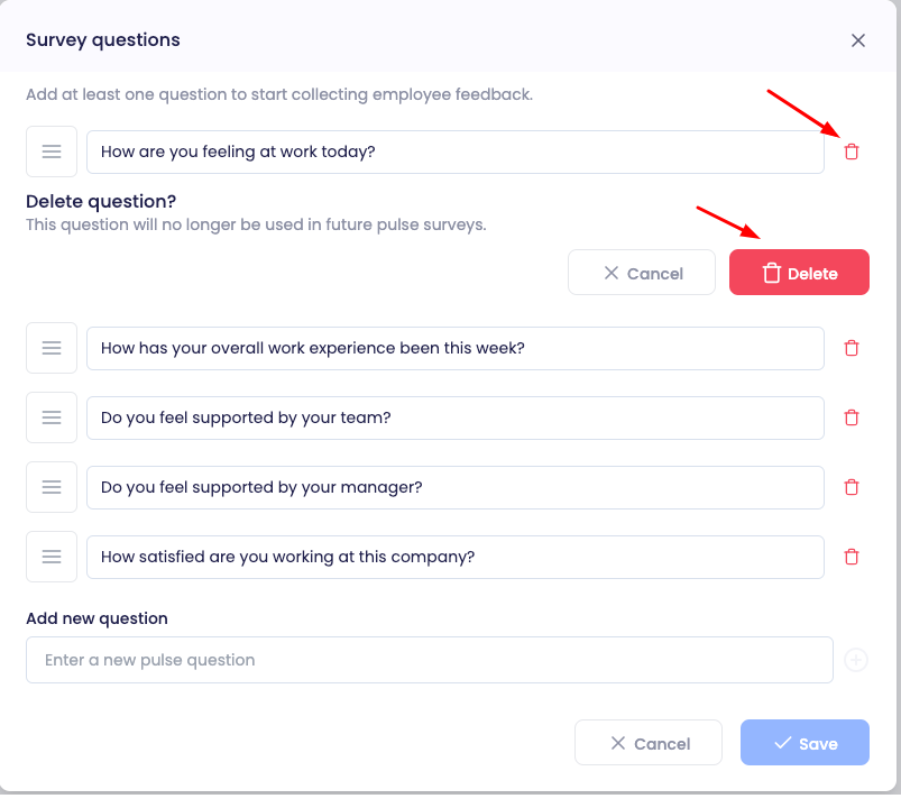
The deleted question will no longer appear in future pulse surveys.
Save Your Changes
After adding, editing, deleting, or reordering questions:
Click Save.
Wait for the confirmation message indicating that the survey questions have been updated successfully.

Result
After saving your changes:
Newly added questions become available for future pulse surveys.
Updated questions replace previous versions.
Deleted questions are removed from future surveys.
Reordered questions follow the new sequence.
Changes take effect immediately after a successful save.
Troubleshooting
The Save Button Is Disabled
The Save button becomes available only after you make a change.
My New Question Was Not Added
Make sure you clicked the + icon after entering the question before selecting Save.
My Changes Were Not Saved
Verify that you clicked Save and received the success notification.
I Deleted The Wrong Question
Select Cancel in the delete confirmation if you have not confirmed the deletion yet. If the question has already been deleted and saved, you will need to add it again.
Frequently Asked Questions
Can I add multiple survey questions?
Yes. Add each question using the + icon, then click Save once you have finished.
Can I edit existing survey questions?
Yes. Update the question text directly in the list and click Save.
Can I change the order of survey questions?
Yes. Drag and drop questions into the desired order, then click Save.
Can I delete a survey question?
Yes. Click the Delete icon beside the question, confirm the deletion, and save your changes.
Do deleted questions appear in future surveys?
No. Once you save the changes, deleted questions are removed from future pulse surveys.
Do I need to save my changes?
Yes. Unlike Pulse Survey settings, changes to survey questions are applied only after you click Save.