How To Import Data
 Noah Parker
01 Jul 2026
The Data Import feature helps you add business data to Payrun using Excel files. You do not need to create records one by one. Simply upload your completed file, and Payrun will check the data and import it automatically. This saves time and makes it easier to move your existing data into Payrun.
The import process helps you:
Import large amounts of data quickly.
Reduce manual data entry.
Detect errors before records are created.
Correct failed records without starting over.
Track import progress and history.
Before You Start
Before importing data, make sure:
You use the Payrun sample template.
Sheet names remain unchanged.
Column headers are not modified.
The file format is .xlsx.
The file size does not exceed 100 MB.
Your subscription plan supports the imported records.
Access The Data Import Page
Follow these steps to open the import page:
Go to Settings.
Click General.
Locate the Data Import section.
Click Import.
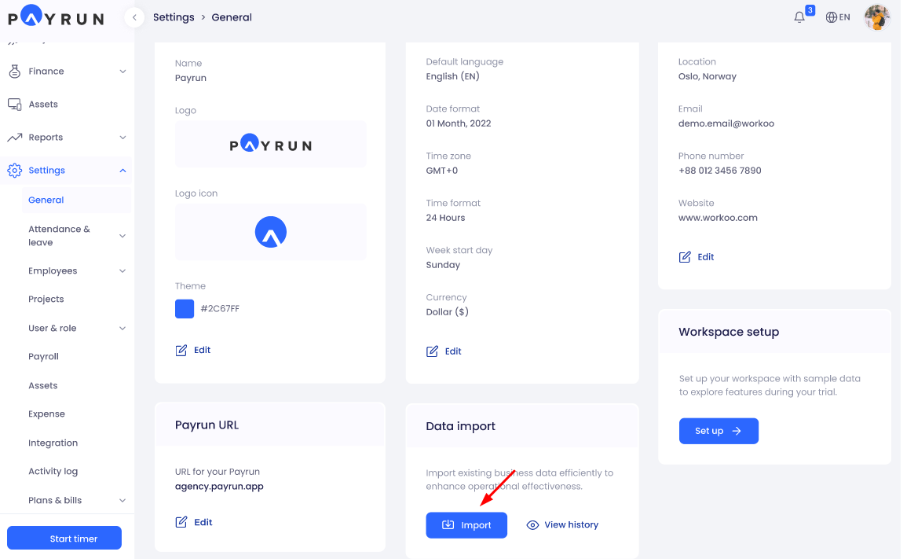
The Data Import page opens.
Understand The Import Process
Payrun uses a simple three-step import process.
Download The Template File
Download the sample Excel template provided by Payrun.
The template contains:
Required columns
Sample values
Correct formatting
Do not:
Rename sheets.
Delete sheets.
Modify column headers.
Fill The Template File
Replace the sample data with your actual business information.
Make sure:
Data is entered in the correct columns.
Required fields are completed.
Values follow the correct format.
Incorrect information may cause validation errors.
Upload The Updated Template
Upload the completed Excel file to begin the import process.
Payrun validates the file before importing the data.
Download The Sample File
Follow these steps:
Open the Data Import page.
Click Download Sample File.
Save the template to your computer.
Always use the latest template provided by Payrun.
Upload An Excel File
Follow these steps to upload a file:
Click Select File.
Choose your completed Excel file. The file size limit is 100 MB
Click Start Import.

The system starts validating and processing the file.

Understand Subscription Limits
Your subscription plan may limit:
Users
Departments
Candidates
Records
If imported data exceeds your subscription limits, the import fails.

Resolve Subscription Limit Errors
When the import exceeds your current plan:
Remaining limits are displayed.
Exceeded values are highlighted.
The import status changes to Failed.
To continue:
Click Update.
Upgrade your subscription plan.
Import the file again.
Resolve Row Limit Errors
Payrun may limit the number of rows allowed in a single import.
If the row limit is exceeded:
The import stops.
An error message appears.

To resolve the issue:
Split the file into smaller files.
Reduce the number of rows.
Upload the files separately.
Complete The Import
When all records are imported successfully:
The status changes to Success.
All sheets display completed progress.
A confirmation message appears.
View Import History
Import History helps you review previous imports.
Follow these steps:
Go to Settings.
Open General.
Click View History.
Understand Validation Errors
Payrun validates:
Required fields
Data formats
Missing values
Invalid values
Duplicate records
If validation fails, the import status changes to Failed.
Download The Error File
When validation errors occur:
Click Download Error File.
Open the downloaded file.
Review the faulty rows.
The downloaded file contains only the records with errors.
The last column explains the reason for each error.
Correct The Errors
Open the error file and:
Correct invalid values.
Complete missing information.
Fix formatting issues.
Save the corrected file after making changes.
Upload The Updated File
Follow these steps:
Click Upload Updated File.
Select the corrected file.
Click Continue Import.

The system resumes the import process.
View Import Details
Each import record contains an action menu.

From the menu, you can:
View details
Download the imported file
This helps administrators review previous imports.
Import A New File
Click Import New File from the Import History page to start another import.
Next Steps
After completing the import, you can:
Review imported records.
Check import history.
Correct failed imports.
Upload additional files.
Verify imported data.
The Data Import feature helps you migrate business data into Payrun efficiently while ensuring data accuracy through validation and error handling.