General Settings
 Noah Parker
30 Jun 2026
The General Settings page allows you to manage your organization's basic information, workspace preferences, contact details, workspace URL, and setup options.
To open the General Settings page:
Go to Settings from the left sidebar.
Click General.
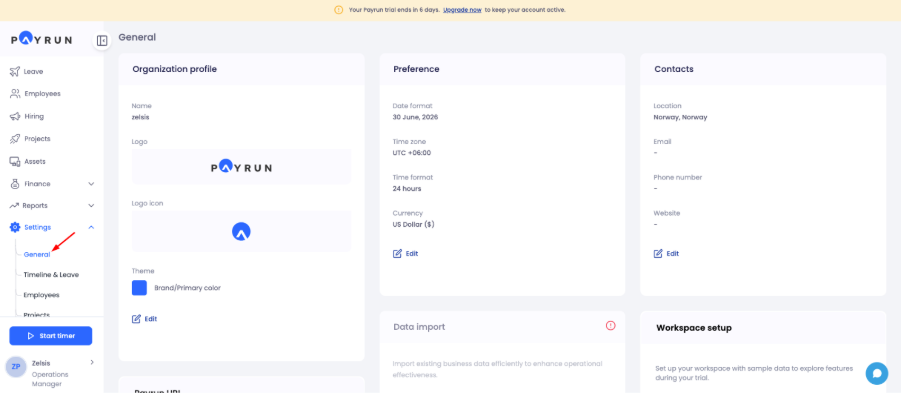
The General page contains the following sections:
Organization Profile
Preference
Contacts
Payrun URL
Data Import
Workspace Setup
Update organization profile
The Organization Profile section allows you to manage your company information and branding.
You can update:
Organization name
Company logo
Logo icon
Theme color
Open the organization profile editor
Go to Settings → General.
Locate the Organization Profile card.
Click Edit.

Update the organization name
Enter your organization name in the Name field.
Review the information.
Click Save.
The updated name appears throughout your workspace.
Upload a company logo
Enter the logo link or upload a logo file.
Review the logo preview.
Click Save.
Recommended size: 160 × 50 px.
Upload a logo icon
Enter the icon link or upload an icon file.
Review the preview.
Click Save.
Recommended size: 50 × 50 px.
Change the theme color
Click Change beside the color value.
Select your preferred color.
Click Save.
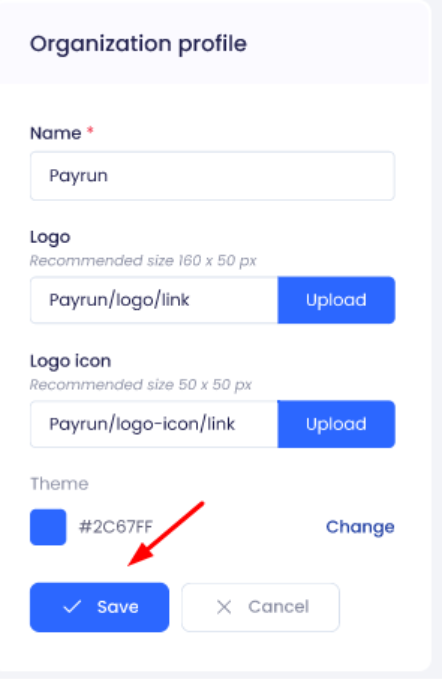
The selected color becomes your workspace brand color and is applied across your workspace UI.
Note: Changes to your organization profile become visible immediately after saving. Click Cancel at any point if you don't want to keep your changes.
Update workspace preferences
The Preference section controls how dates, times, and other regional settings appear inside your workspace.
Available options may include:
Default language
Date format
Time zone
Time format
Week start day
Currency
Open preference settings
Go to Settings → General.
Find the Preference card.
Click Edit.

Change the default language
Open the Default language dropdown.
Select your preferred language.
Click Save.
All workspace labels and system text update to the selected language.
Change the date format
Open the Date format dropdown.
Select your preferred format.
Click Save.
Change the time zone
Open the Time zone dropdown.
Select the appropriate time zone.
Click Save.
Important: Payrun displays a warning before changing the time zone, since this can affect existing date and time values across your workspace (such as attendance logs and payroll runs). Confirm the change only after reviewing the warning.
Change the time format
Select either 12 Hours or 24 Hours.
Click Save.
Change the week start day
Open the Week start day dropdown.
Select your preferred day.
Click Save.
This affects how calendars and weekly reports are displayed throughout your workspace.
Change the currency
Open the Currency dropdown.
Select your preferred currency.
Click Save.

Update contact information
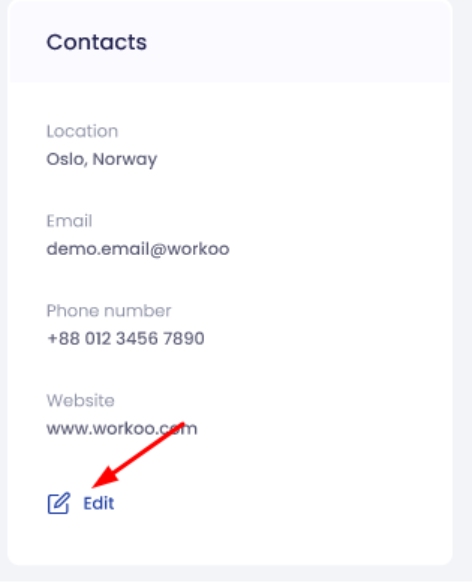
The Contacts section stores your organization's contact details.
You can add:
Location
Email address
Phone number
Website
Edit contact details
Go to Settings → General.
Locate the Contacts card.
Click Edit.
Update the location
Open the Location dropdown.
Select your country or location.
Click Save.
Update the email address
Enter your company email address.
Click Save.
Update the phone number
Select the country code.
Enter the phone number.
Click Save.
Update the website
Enter your organization's website address (including the protocol, e.g. https://).
Click Save.

Note: Keeping contact information up to date ensures your organization details are accurate across Payrun and any documents that reference them.
Update the Payrun URL
The Payrun URL allows your organization to use a custom workspace address.
Example: agency.payrun.app
Change the workspace URL
Go to Settings → General.
Find the Payrun URL card.
Click Edit.
Enter the workspace name.
Click Save.

The new value becomes part of your workspace URL, and any existing bookmarks or shared links using the old URL will no longer work.
Import existing data
The Data Import section helps you import existing business data into your workspace.
Start a data import
Go to Settings → General.
Locate the Data Import card.
Click Import.

View import history
Open the Data Import section.
Click View History.
The history page displays previous import activities, including the date, source, and status of each import.
Set up a sample workspace
Workspace Setup allows you to populate your trial workspace with sample data. Sample data helps you explore features and understand how different modules work before adding your own information.
Go to Settings → General.
Locate the Workspace Setup card.
Click Set up.

Payrun creates sample records across your workspace so you can explore features immediately.
Note: Workspace Setup is available during the trial period only. When you will upgrade or reset the workspace data your sample data will be gone. Also, after setting up your workspace with sample data, if you input any real data that will be removed.
Tips
Keep your organization information updated.
Verify your time zone before adding employees, since this affects attendance and payroll calculations.
Use your brand color for a consistent workspace experience.
Review contact details regularly.
Use sample data to explore features before adding your own information.
Save your changes before leaving the page.