How To View Employee Logs
 Noah Parker
24 Jun 2026
Employee logs help managers understand how employees spend their working hours. From a single place, you can review scheduled hours, logged hours, attendance status, pending entries, and time balances.
Payrun provides dedicated tools to help you monitor employee activity, review submitted timelogs, and identify missing or incomplete records without switching between multiple screens.
Open The Timesheet View
Employee logs are available from the Timeline module.
To access the logs:
Open the left sidebar.
Click Timeline.
Select the Timesheet tab.
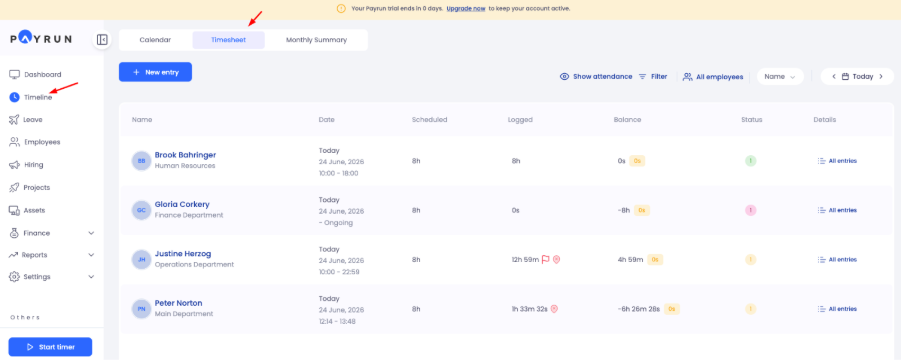
The Timesheet view displays a list of employees along with their scheduled hours, logged hours, balances, and attendance information.
For HR managers, admin and owners, this screen acts as the central location for reviewing employee work records.
Understand The Employee Log Summary
Each employee row provides a quick overview of working hours.
The table displays:
Scheduled hours
Logged hours
Time balance
Employee status
The balance column helps identify whether employees have completed their expected working hours.
Understand Timelog Status And Warning Icons
Payrun uses status and warning icons to help managers quickly identify approved entries, missing hours, unusual activity, and potential attendance issues.
Understanding these indicators helps teams review timelogs more efficiently.
Approved Timelog
The green status icon indicates that the timelog has been approved.
An approved entry means:
The submitted hours have been reviewed.
The HR manager, owner or admin has accepted the entry.
The logged time can be included in reporting and payroll calculations.
No further action is required for approved timelogs.
Rejected Timelog
The red status icon indicates that the timelog has been rejected.
A timelog may be rejected for several reasons:
Incorrect working hours
Missing information
Invalid entries
Policy violations
Rejected entries usually require the employee to review and update the submitted record.
Pending Timelog
The yellow status icon indicates that the timelog is waiting for review.
Pending entries have been submitted but have not yet been approved or rejected.
Managers should review pending timelogs regularly to keep attendance records up to date.
Unrecognized IP Address
A red warning icon beside the logged hours indicates that the employee submitted the timelog from an IP address that is not included in the organization's approved IP whitelist.
This warning helps organizations:
Detect unusual login locations.
Monitor remote access.
Improve attendance security.
Identify potential unauthorized activity.
The warning does not automatically reject the timelog, but administrators may review the entry before approval.
Workshift Threshold Warning
The red flag icon appears when the logged hours exceed the configured standard workshift duration.
For example, if an employee's regular shift is 8 hours but the recorded time exceeds the allowed threshold, the system displays a warning flag.
This indicator helps managers:
Identify excessive overtime.
Detect accidental time entries.
Review unusually long work sessions.
Maintain accurate attendance records.
Flagged entries should be reviewed before approval to ensure the recorded hours are accurate.
This information allows managers to identify attendance issues without opening every individual record.
View Attendance Information
Click Show attendance to display attendance statistics.
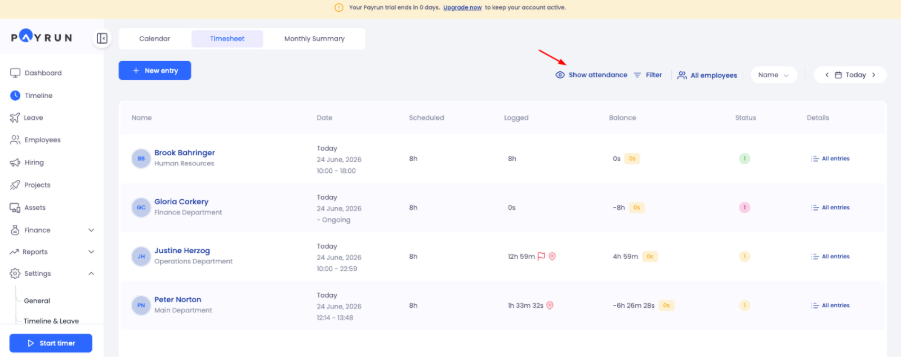
The attendance panel provides an overview of workforce availability, including:
Total employees
Employees currently working
Employees on leave
Employees not working

This information is particularly useful for team leads who need a quick understanding of daily workforce availability.
You can hide the attendance section at any time by clicking Hide attendance.
Filter Employee Logs
As employee records grow, filters make it easier to locate specific entries.
Click Filter to open the filtering options.

You can filter records by:
Approved
Pending
Rejected
After selecting the required filters, click Apply.

Filtering allows managers to focus on specific records instead of reviewing every employee manually.
For example, you may want to review only pending timelogs before payroll processing.
Find Specific Employees
The employee selector helps narrow the results to individual employees or teams.

To filter employees:
Click All employees.
Search for an employee name.
Select one or multiple employees.
Click Apply.
This feature is useful when reviewing attendance for a department, project team, or specific employee.
Sort Employee Records
Payrun allows you to sort employee logs in several ways.

Available sorting options include:
Name
Logged (Most)
Logged (Least)
Balance (Highest)
Balance (Lowest)
Sorting helps managers quickly identify:
Employees with missing hours
Employees with overtime
Employees with large time balances
Instead of reviewing every employee individually, the sorting feature helps surface potential issues immediately.
Change The Reporting Period
Employee logs can be reviewed for different periods.

Changing the reporting period helps managers review attendance history and investigate previous records when necessary.
Open Employee Entries
Each employee row contains an All entries option.
Click All entries to view the employee's detailed timelog records.
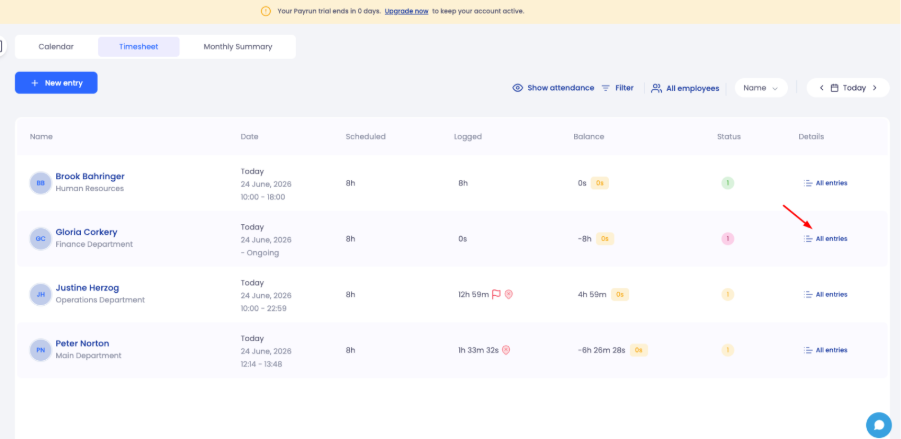
The employee summary panel displays:
Scheduled hours
Logged hours
Balance
Leave hours
Approved timelogs
Approved leave
Pending entries
This section provides a complete overview of an employee's activity during the selected period.
Review Individual Timelogs
Every time entry contains detailed information, including:
Date
Start time
End time
Duration
Assigned task
Entry status
Managers can compare the logged hours with scheduled hours to ensure accuracy.

If an employee has forgotten to submit time or has logged incorrect hours, the issue becomes immediately visible.
Add Notes To Employee Entries
Payrun allows managers to add notes directly to individual timelogs.
To add a note:
Open the employee entry.
Expand the desired timelog.
Enter your note.
Click Add.
Notes can be used to:
Explain attendance issues.
Document approval decisions.
Record overtime reasons.
Add internal comments.
The activity timeline stores these notes for future reference.
Update Timelog Status
Individual entries can be managed from the action menu.
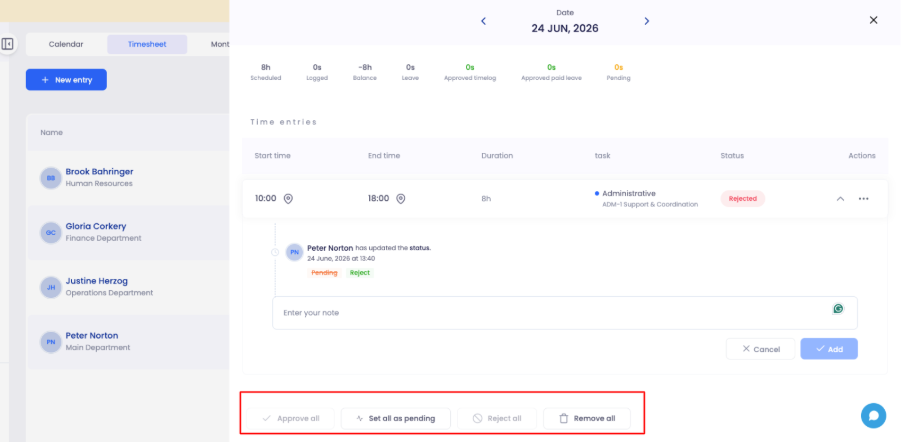
Available options include:
Approve all
Set as pending
Reject all
Remove entry
Managers can update the status if additional information is required before approval.
Best Practices For Reviewing Employee Logs
To maintain accurate records:
Review employee logs regularly.
Check pending entries before payroll processing.
Investigate negative balances.
Use notes for unusual situations.
Verify overtime before approval.
Encourage employees to submit entries promptly.
Regular log reviews help maintain accurate attendance records and reduce payroll discrepancies.
Next Steps
After reviewing employee logs, you may want to:
Approve employee timelogs.
Review monthly attendance summaries.
Analyze employee balances.
Monitor overtime.
Generate attendance reports.
Review employee schedules from the Calendar view.