Earnings And Deductions Settings in Payrun
 Noah Parker
18 Aug 2026
The Earnings & deductions settings in Payrun let you create and manage additional payroll earnings and deductions.
You can:
Create earnings and deductions.
Set them as a percentage of base salary or a fixed monthly amount.
Decide whether an item should be pro-rated.
Add or update its value later.
Enable or disable existing items.
Edit or delete items when needed.
What Are Earnings And Deductions In Payrun?
Earnings are additional pay components that can be included in an employee's salary, such as a bonus, house rent, medical allowance, or conveyance bill.
Deductions are components used to deduct an amount from an employee's salary.
Payrun lets you configure both as either a percentage of base salary or a fixed monthly amount.
Where To Find Earnings And Deductions
Go to:
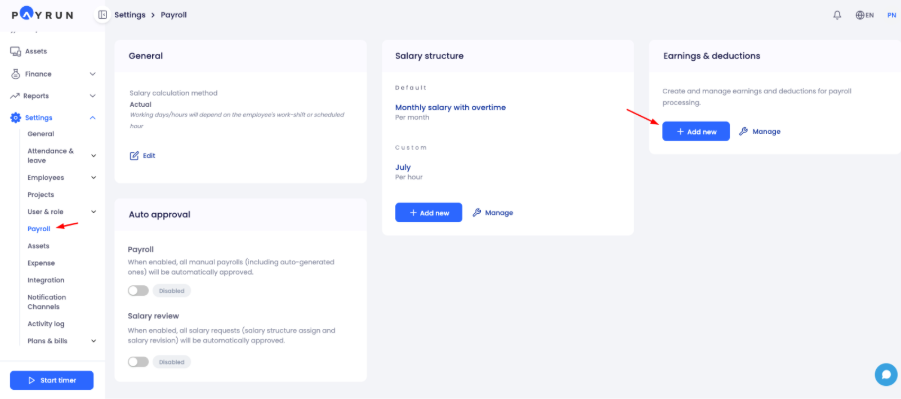
Settings → Payroll → Earnings & deductions
You will see two options:
Add new – Create a new earning or deduction.
Manage – View and manage the earnings and deductions you have already created.
How To Add An Earning
To create a new earning:
Go to Settings → Payroll.
Find the Earnings & deductions section.
Click Add new.
Select the Earning tab.
Enter the Earning name.
Choose the Type.

Set the Pro-rated option.

Enter a Value if needed.
Click Save.

Once saved, the earning appears in your earnings list.
How To Add A Deduction
To create a new deduction:
Go to Settings → Payroll.
Find the Earnings & deductions section.
Click Add new.
Select the Deduction tab.
Enter the Deduction name.
Choose the Type.
Set the Pro-rated option.
Enter a Value if needed.
Click Save.

Once saved, the deduction appears in your deductions list.
Earning And Deduction Settings Explained
The same main settings are available when you create an earning or deduction.
Name
Enter a clear name for the earning or deduction.
For example, earnings could include:
Bonus
Conveyance bill
House rent
Medical allowance
Other allowance
A clear name makes the item easier to identify when you use it later.
Type
The Type setting controls how Payrun defines the value of the earning or deduction.
You can choose between:
% of base salary
Choose this option when the value should be based on a percentage of the employee's base salary.
For example, if House rent is set to 40% of base salary, enter 40% as its value.
Fixed amount (monthly)
Choose this option when you want to set a specific monthly amount instead of calculating it as a percentage of base salary.
Pro-Rated
The Pro-rated setting controls whether the earning or deduction should adjust according to worked days or hours.
When Pro-rated is enabled, Payrun calculates the amount based on worked days or hours.
When Pro-rated is disabled, the amount remains constant with no adjustment based on worked days or hours.
Use this setting based on whether the earning or deduction should change when an employee works fewer days or hours.
Value
The Value field defines the amount or percentage for the earning or deduction.
If you select % of base salary, enter a percentage value.
If you select Fixed amount (monthly), enter the fixed monthly value.
You can also update the value later during:
Salary structure creation
Employee salary setup
Salary review
Payroll processing
A value update at any of these stages does not change the overall structure.
Can I Create An Earning Or Deduction Without A Value?
Yes. You do not have to finalize the value when you first create the earning or deduction.
If no value has been added, you may see Not added yet in the Value column on the management page.
You can add or update the value later during salary structure creation, employee salary setup, salary review, or payroll processing.
How To Manage Earnings And Deductions
Go to Settings → Payroll → Earnings & deductions and click Manage.

The management page separates your payroll components into:
Earnings
Deductions
The number beside each tab shows how many items are currently listed under that category.

Enable Or Disable An Item
Use the toggle under Status to enable or disable an earning or deduction.
The status appears beside the toggle as Enabled or Disabled.
If you do not want to delete an item, you can disable it instead.
Edit An Earning Or Deduction
To edit an existing item:
Open Earnings & deductions.
Click Manage.
Select the Earnings or Deductions tab.
Find the item you want to update.
Click the three-dot menu under Actions.
Select Edit.
Update the required information.
Save your changes.

Delete An Earning Or Deduction
To delete an item:
Open the Manage page.
Select the appropriate Earnings or Deductions tab.
Find the item.
Click the three-dot menu.
Select Delete.
If you only want to stop using an item without removing it, use the Status toggle instead.
Common Questions About Earnings And Deductions
What Does Pro-Rated Mean In Payrun?
Pro-rated determines whether an earning or deduction changes according to worked days or hours.
Enable Pro-rated when the amount should adjust based on worked days or hours. Disable it when the amount should remain constant without that adjustment.
What Does “Not Added Yet” Mean?
Not added yet means no value has been entered for that earning or deduction.
You can provide the value later during salary structure creation, employee salary setup, salary review, or payroll processing.
What Is The Difference Between Percentage And Fixed Amount?
% of base salary defines the earning or deduction as a percentage of the employee's base salary.
Fixed amount (monthly) lets you define it as a specific monthly amount.
Choose the option that matches how you want the payroll component to be calculated.
Can I Change The Value Later?
Yes. You can update the value during salary structure creation, employee salary setup, salary review, or payroll processing.
The value can be changed without changing the overall structure.
Can I Create Both Earnings And Deductions?
Yes. Click Add new and choose either the Earning or Deduction tab.
Both support percentage-based or fixed monthly values and the Pro-rated setting.
Can I Disable An Item Without Deleting It?
Yes. Go to Manage and use the Status toggle for the earning or deduction.
Use this option when you want to keep the item but do not want it enabled.