How To Create A New Project In Payrun
 Noah Parker
10 Jun 2026
Projects in Payrun help teams organize work, assign ownership, and control who can access project-related information. Creating a project only takes a few minutes and ensures your team has a dedicated space to manage activities efficiently.
Follow the steps below to create a new project.
Before You Begin
Make sure you have permission to create projects in Payrun. You should also know:
The project name you want to use (Need Owner or Admin access)
A unique project key
Who should have access to the project
The employee who will serve as the project lead
Step 1: Navigate To Projects
From the left-hand navigation menu, click Projects.
The Projects page displays all existing projects and allows you to create and manage project workspaces.

Step 2: Start A New Project
Click the + New Project button in the upper-left corner of the page.
A Create New Project dialog will appear.

Step 3: Enter The Project Details
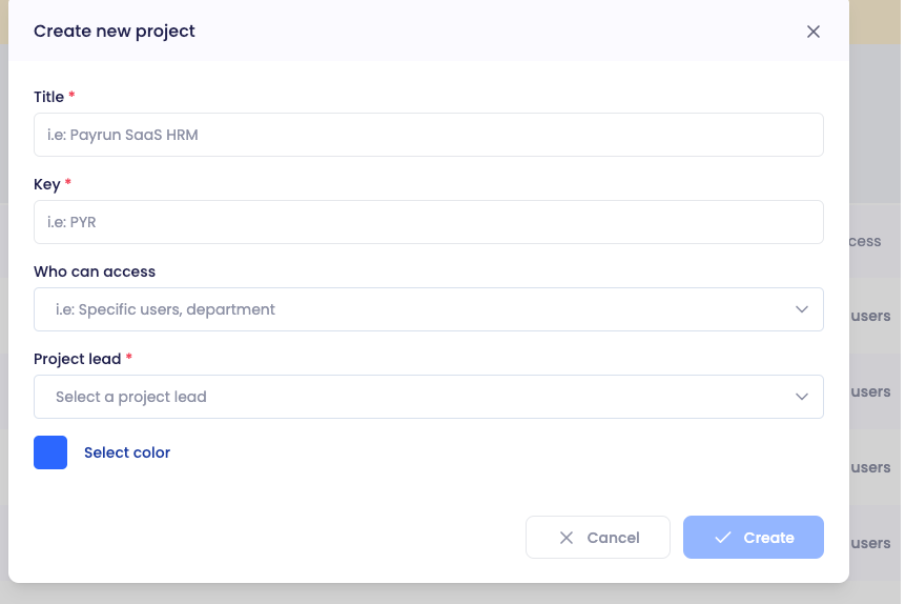
Add A Project Title
In the Title field, enter a clear and descriptive name for your project.
Choose a title that helps team members quickly identify the purpose of the project.
Add A Project Key
In the Key field, enter a unique project identifier. When you will write the title, an automated task key will be generated, but you can change it if you want.
The project key is used as a short reference throughout the system.
Project Key Requirements
Minimum 3 characters
Maximum 5 characters
Uppercase letters only (A–Z)
Numbers (0–9) are allowed
Step 4: Define Who Can Access The Project
Use the Who Can Access dropdown to determine which users can view and work within the project.
Option 1: All Users
Select All Users if everyone in your organization should be able to access the project.
This option is ideal for company-wide initiatives or projects that require broad visibility.
Option 2: Selected Departments
Select Selected Departments if access should be limited to specific departments.

After choosing this option:
Click the Departments field.
Search for the department you want to add.
Select one or more departments.
Only users belonging to the selected departments will have access to the project.

Option 3: Selected Users
Select Selected Users if access should be granted only to specific employees.
After choosing this option:
Click the Users field.
Search for the employee you want to add.
Select one or more users.
Only the selected users will be able to view and participate in the project.

Step 5: Assign A Project Lead
Open the Project Lead dropdown and select the employee responsible for managing the project.
The project lead serves as the primary owner of the project and is responsible for coordinating project activities.
Step 6: Choose A Project Color
Click Select Color and choose a color for the project.
Project colors make it easier to identify projects throughout Payrun and improve visual organization.
Step 7: Create The Project
After reviewing all information:
Confirm the project title and key.
Verify access permissions.
Ensure the correct project lead is selected.
Click Create.
Payrun will create the project and add it to your Projects list immediately.

Result
Once created, the new project will appear on the Projects page with its:
Project title
Project key
Project lead
Access settings
Assigned color
Your team can now begin collaborating within the project and managing project-related work from a centralized location.
Troubleshooting
Unable To Create The Project
If the Create button remains unavailable, check the following:
A project title has been entered
The project key meets the required format
A project lead has been selected
Any required department or user selections have been completed
Project Key Not Accepted
Ensure the project key:
Contains 3–5 characters
Uses uppercase letters
Does not duplicate an existing project key
If the issue persists, try a different unique key.