How To Create A Payroll
 Noah Parker
02 Jul 2026
Creating payroll in Payrun helps you calculate employee salaries for a specific pay period. You can select employees or departments, review payroll issues, make adjustments, and submit the payroll for processing.
Before creating a payroll, make sure employee salaries, attendance records, and leave approvals are up to date.
Before You Start
Make sure the following information is available:
Employee salary structures are configured.
Attendance records are approved.
Leave requests are reviewed.
Employee profiles are complete.
Employees have not already received payroll for the selected period.
Incomplete information may prevent payroll from being processed correctly.
Step 1: Open The Payroll Module
Go to Finance from the left sidebar.
Click Payrolls.
Click Create payroll.
The payroll creation wizard will open.

Step 2: Enter Payroll Details
Under the Payroll details section, enter the required information.

Select Payroll Type
Choose the type of payroll.
Available options may include:
Regular payroll
Bonus payroll
Deduction payroll
Enter The Payroll Title
Provide a name for the payroll.
Example:
Salary for April 2025
Select The Pay Period
Choose the payroll period using the calendar picker.
Example:
April 2025
Step 3: Select Departments
Use the Select department field to choose the departments you want to include.
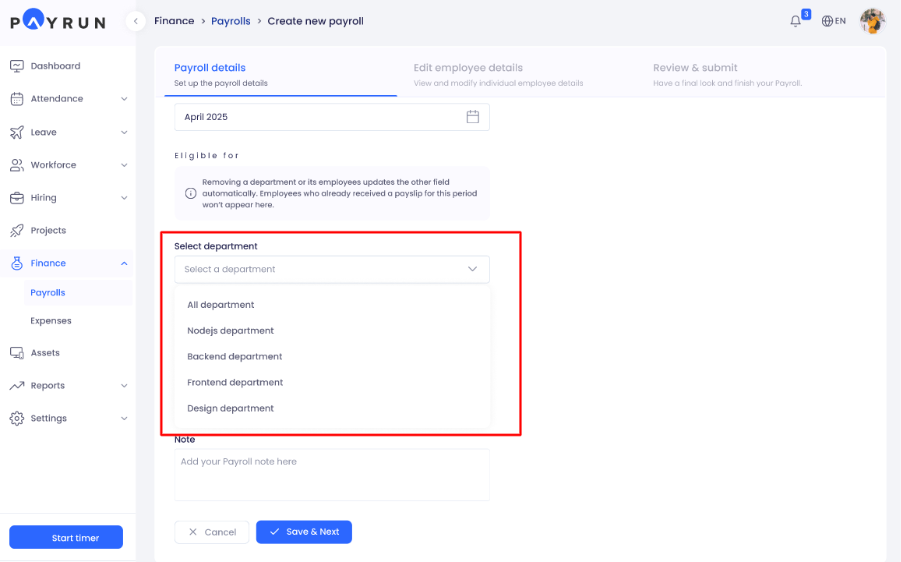
You can:
Select all departments.
Select multiple departments.
Remove departments if necessary.
Employees from the selected departments will automatically appear in the employee list.
Note: Employees who already received payroll for the selected period will not appear.
Step 4: Select Individual Employees
You can also select employees manually.

Use the employee search box to:
Search employees.
Add multiple employees.
Remove employees from the list.
This option is useful when payroll needs to be created for specific employees only.
Step 5: Add A Payroll Note
The Note field is optional.
You can use it to add:
Salary adjustment notes
Approval comments
Internal payroll remarks
After completing the information, click Save & Next.

Step 6: Resolve Payroll Issues
Payrun automatically checks employee records before generating payroll.
If problems are found, an Action required section appears.

Common issues include:
Profile issues
Pending timelogs
Pending leaves
Review and fix all issues before proceeding.
Step 7: Fix Profile Issues
Click Profile Issues to view employees with incomplete information.

Examples include:
Missing salary structure
Outdated salary information
Click Go to profile to open the employee profile.
Update the missing information and save the changes.

Step 8: Approve Pending Timelogs
Click Pending timelogs to review attendance records that still require approval.

The list shows:
Employee name
Total approved hours
Number of pending entries
Click Go to timesheet to review and approve the timelogs.
Unapproved attendance records can affect salary calculations.

Step 9: Approve Pending Leaves
Click Pending leaves to review leave requests.

The list displays:
Employee name
Leave hours
Number of pending requests
Click Go to leave records to approve or reject the leave requests.
Pending leave requests may affect payroll calculations.

Step 10: Recalculate The Payroll
After fixing all issues, click Recalculate.
Payrun recalculates:
Working hours
Overtime
Deductions
Net salary
Always recalculate payroll after updating employee information, approving leaves, or approving timelogs.

Step 11: Review Employee Payroll Details
The employee table shows:
Approved hours
Gross salary
Overtime
Deductions
Net pay
Review each employee carefully before proceeding.
Step 12: Manage Individual Employees
Open the action menu beside an employee to access additional options.

Available actions include:
View Details
Open detailed payroll information for the employee.
Remove
Remove the employee from the payroll.
Go To Profile
Open the employee profile to update information.
Make any necessary changes before continuing.
Click Next to proceed.
Step 13: Review The Payroll
The Review & Submit page displays the final payroll information.
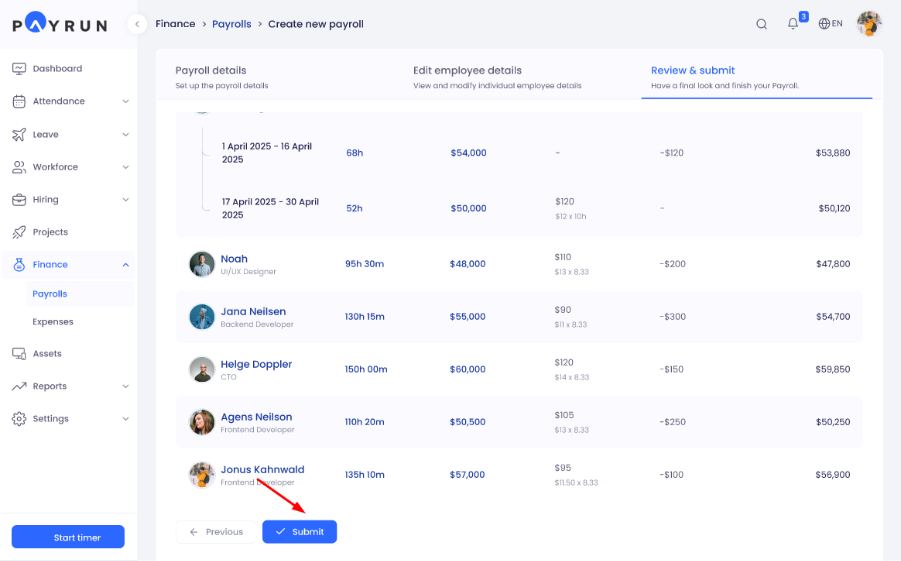
Review the following details:
Employee names
Approved hours
Gross salary
Overtime earnings
Deductions
Net pay
Take a final look before submitting the payroll.
Step 14: Submit The Payroll
Click Submit to complete the payroll.
Payrun creates the payroll and adds it to the payroll list.
What Happens Next
After submission:
The payroll appears in the Payrolls list.
Payroll records remain available for future reference.
You can open the payroll later to review its details.
Owner, Admin and Finance manager can approve or reject payroll.
Result
Your payroll has now been created successfully.
Payrun helps you identify missing information, pending approvals, and employee issues before submission. This ensures accurate payroll calculations and reduces manual work for your HR and finance teams.