How To Create A New Time Entry
 Noah Parker
24 Jun 2026
Time entries help organizations record employee working hours against assigned tasks and projects. Managers can use time entries to track productivity, approve work hours, and maintain accurate timesheets.
Why Use Time Entries?
Time entries allow administrators and managers to:
Record employee working hours
Track project activities
Review logged time
Approve submitted hours
Monitor employee workloads
Maintain accurate payroll records
Every entry is linked to an employee, a task, and a specific working period.
Open The Timeline Module
Select Timeline from the left navigation menu.

The timeline page displays:
Employee schedules
Logged hours
Approved timelogs
Pending entries
Weekly schedules
You can switch between:
Calendar
Timesheet
Monthly Summary
Start A New Entry
Click New entry.

The time entry form opens from the right side of the screen.

The form allows you to enter all required information before saving the record.
Enter The Duration
Specify the total duration of the work.

You can:
Enter the duration manually.
Select predefined durations such as 15 minutes, 1 hour, or 8 hours.
Example:
08:00 hours
The duration should match the difference between the start and end times.
Select The Work Date
Choose the date for the time entry.

You can:
Open the calendar picker.
Select a specific date.
Use quick options such as Yesterday, Today, or Tomorrow.
The selected date determines when the working hours will appear on the timeline.
Define Working Hours
Enter the employee's working period.

Example:
Start time: 10:00
End time: 18:00

The system calculates the logged hours based on the selected duration and working period.
Choose The Entry Status
Payrun provides two status options:
Pending
Use this option when the entry requires approval.
Approved
Use this option when the hours have already been reviewed and approved.

The selected status affects the approval workflow and reporting.
Select The Employee
Open the Employee dropdown.

Choose the employee who performed the work.
The dropdown displays:
Employee name
Job title
Department
Only one employee can be selected for each time entry.
Assign A Task
Choose the related task from the Task field.

The selected task helps connect working hours to specific responsibilities.
Add Notes
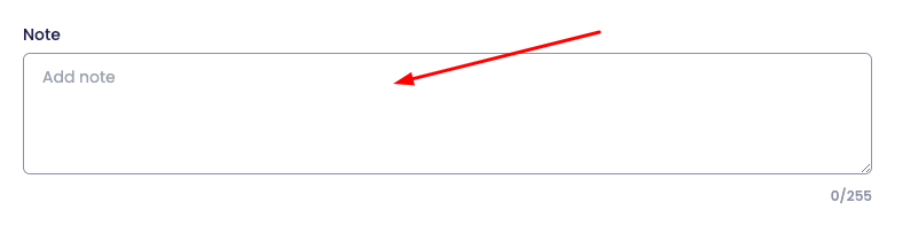
Use the Note field to provide additional information.
Save The Entry
Review all information before submitting.

Click Add.
Payrun creates the time entry and places it on the employee timeline.
Review The Timeline
After saving, the new entry appears on the calendar view.

The timeline displays:
Employee name
Task name
Start time
End time
Total hours
Managers can quickly review schedules and workloads from the timeline.
Time Entry Tips
Consider the following recommendations:
Record hours as soon as work is completed.
Select the correct employee.
Assign the appropriate task.
Add notes for important activities.
Use approved status only after verification.
Review the timeline regularly.
Accurate time entries improve reporting, project tracking, and workforce management.
Related Tasks
After creating a time entry, you can:
Review employee timesheets.
Approve pending entries.
Analyze monthly summaries.
Monitor employee workloads.
Generate time reports.