How To Create And Manage Tasks In Projects
 Noah Parker
14 Jun 2026
Payrun Projects helps teams organize work, assign ownership, collaborate efficiently, and track progress from a centralized workspace. Whether you're managing product development, HR initiatives, or internal operations, tasks help your team stay aligned and deliver work on time.
This guide walks you through the complete task lifecycle in Payrun, from creating a task to tracking time and reviewing activity history.
Before You Begin
Before creating tasks, ensure that:
You have access to the Projects module.
Your organization has Projects enabled.
Team members have already been added to Payrun.
You have permission to create or manage tasks.
Note: User permissions may vary depending on your organization's settings.
Open A Project
After creating or selecting a project:
Navigate to Projects.
Locate the desired project.
Click the project name.
Payrun opens the project board.

You will see task columns such as:
To Do
In Progress
Completed
You will see this view if you the Kanban view mode is chosen, otherwise you will see the list view.
Understand Task Workflow
Tasks move through different stages as work progresses.
Status | Description |
|---|---|
To Do | Work has not started yet |
In Progress | Team members are actively working on the task |
Completed | Work has been finished |
Create A New Task
Create tasks to organize work, define requirements, and assign ownership.
Steps
Open the project board.
Click New Task.
The Create Task window appears.

Add Task Information
Complete the required fields before creating the task.

Task Title
Enter a short and descriptive title.
Example:
Create Forgot Password Module
Clear titles help team members quickly understand the objective.
Description
Use the description field to document requirements and context.
A well-written task description may include:
Business objectives
User stories
UX flows
Acceptance criteria
Technical requirements
API details
Security considerations
Design references
The editor supports rich formatting, including:
Headings
Lists
Tables
Links
Images
Code snippets
Tip: The more context you provide, the easier it becomes for team members to execute the work accurately.
Set Task Status
Select the current stage of the task.
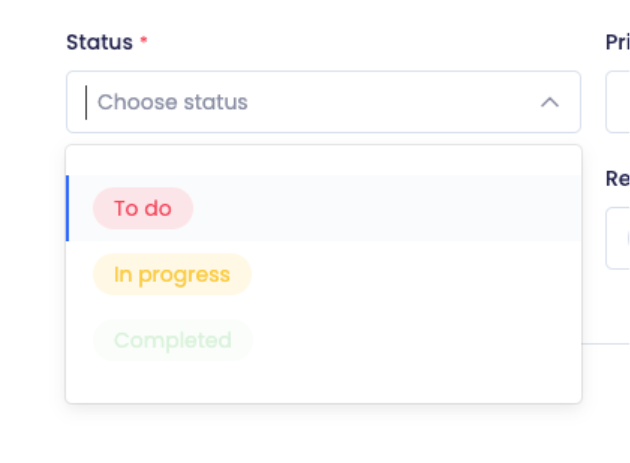
Available options include:
To do
In progress
Completed
Set Task Priority
Priority helps teams focus on important work first.

Available priority levels:
High
Medium
Low
Assign Team Members
Assignee
Choose the person responsible for completing the task.

Reporter
Select the person who created or requested the task.

Set A Due Date
Assign a deadline to keep projects on schedule.
Steps
Click the due date field.
Select a date from the calendar.
Save the task.

Create The Task
After completing all required fields:
Review the information.
Click Create.

Open And Review Task Details
Click any task card to access its detailed view.
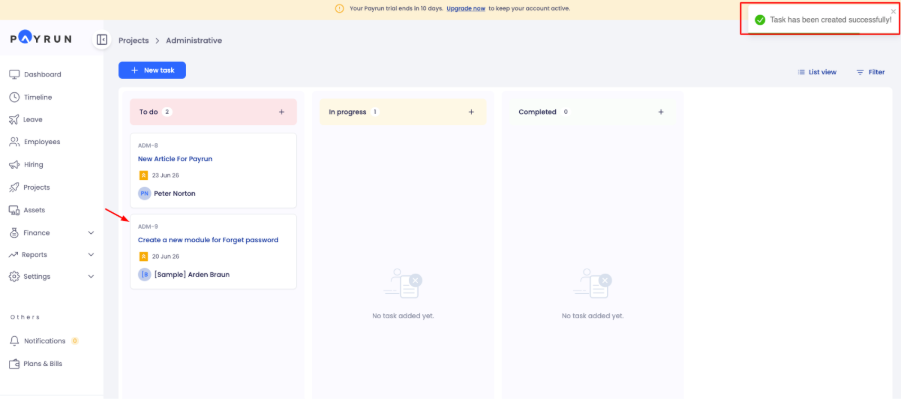
The task page includes:
Task Title
Description
Assignee
Reporter
Status
Priority
Due date
Time tracking
Activity history
Comments
This page serves as the central workspace for the task.

Collaborate Through Comments
The Comments tab helps teams communicate directly within a task.
Team members can:
Add comments
Reply to discussions
Mention users using @name
Edit comments
Delete comments
Using comments keeps all discussions attached to the task instead of scattered across emails or chat applications.

Review Task Activity
The Activity Log tab records task changes automatically.
Examples include:
Status updates
Priority changes
Assignment changes
Description edits
Title modifications
Activity logs improve transparency and provide a historical record of work.

Review Timelogs
The Timelog tab helps managers and employees monitor work hours.
You can:
View logged hours by employees

Review work history
Analyze time spent on tasks

Filter records by time period
Track Time On Tasks
Payrun allows users to record work hours directly from the task page.
Steps
Open the task.
Click Start Timer.
Perform the work.
Stop the timer when finished.

Add Estimated Time
Estimated time helps teams plan workloads more accurately.

Update Task Information
Task details can change as work evolves.
Steps
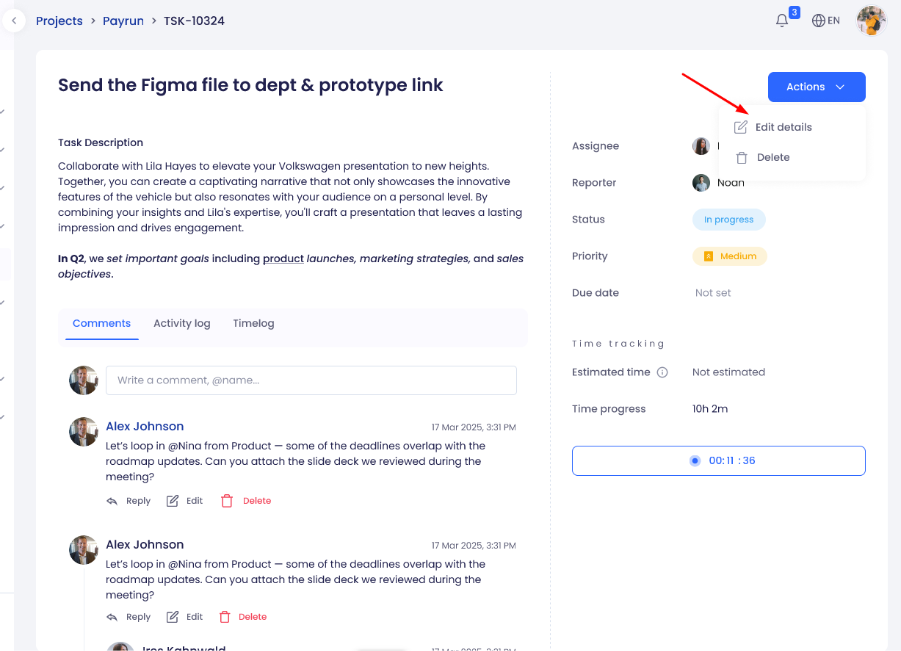
Open the task.
Click Actions.
Select Edit Details.
Update the necessary information.
Click Update.
Delete A Task
If a task is no longer needed:
Open the task.
Click Actions.
Select Delete.
Warning: Deleted tasks may not be recoverable depending on your organization's settings.
Best Practices For Task Management
Follow these recommendations to improve team productivity:
Write clear and actionable task titles.
Define acceptance criteria early.
Assign ownership to avoid confusion.
Use priorities consistently.
Set realistic due dates.
Track work hours regularly.
Review activity logs when auditing changes.
Encourage collaboration through comments.
Consistent task management helps teams improve visibility, accountability, and project delivery.