How To Create And Manage Expense Types
 Noah Parker
23 Jun 2026
Expense types help organizations categorize employee expenses for reimbursement and reporting. By creating standardized expense categories, employees can submit claims consistently while managers can review and track expenses more efficiently.
What Are Expense Types?
Expense types define the categories employees can select when submitting expense claims. Organizations often create separate categories for different business expenses, such as:
Medical Expense
Fuel Expense
Mobile Expense
Internet Expense
Food Expense
Using standardized expense types helps maintain accurate records and improves expense reporting.
Access The Expense Type Settings
To open expense type settings:
Click Settings from the left sidebar.
Select Expense.

The Expense page allows administrators to create and manage expense categories used throughout the organization.
Add A New Expense Type
Click Add new to create a new expense category.

A side panel will appear.
Enter the expense type name in the Expense type field.
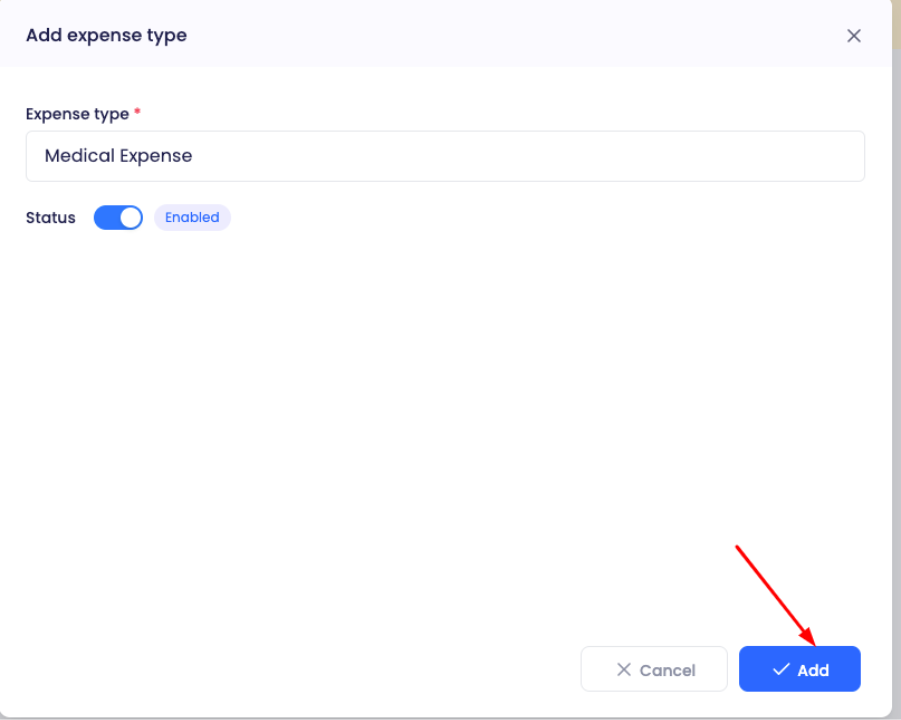
The Status toggle is enabled by default. An enabled expense type becomes immediately available for expense claims.
Click Add to save the expense type.
A confirmation message appears after the expense type has been created successfully.

You can create additional categories based on your company's policies.
View Existing Expense Types
Click Manage to open the expense type management page.

The management screen displays:
Expense type name
Current status
Available actions
This page provides a centralized location for maintaining all expense categories.
Enable Or Disable An Expense Type
Each expense type includes a status toggle.

When the toggle is enabled, employees can select the expense type during expense submissions.
When the toggle is disabled, the expense type becomes unavailable for new expense claims while remaining in the system for historical records.
Disabling unused expense categories helps keep expense submissions organized.
Edit An Expense Type
Click the Actions menu beside an expense type.

Select Edit.
Update the expense type name or modify its status.
Save the changes to apply the updates.
Delete An Expense Type
Open the Actions menu.
Select Delete.
Deleting an expense type permanently removes it from the system.
Important:
Before deleting an expense type, verify that it is no longer required for future expense submissions. Consider disabling the expense type instead if you may need it later.
Best Practices For Expense Categories
Follow these recommendations when creating expense types:
Use clear and descriptive names.
Keep category names consistent.
Avoid creating duplicate expense types.
Disable unused categories instead of deleting them.
Review expense categories periodically.
Organized expense categories make claim submission and reporting easier for both employees and administrators.
Related Tasks
After creating expense types, you can continue with:
Submitting employee expense claims
Reviewing expense requests
Approving reimbursements
Generating expense reports
Managing expense policies