How To Connect Payrun MCP Server With Grok
 Noah Parker
03 Aug 2026
The Payrun MCP (Model Context Protocol) server allows Grok to securely access supported information from your Payrun workspace. Once connected, Grok can answer questions about employee records, attendance, leave, projects, and other supported information based on your existing Payrun permissions.
Note
Grok can only access information your Payrun account is already authorized to view. The Payrun MCP server provides read-only access and cannot modify your data.
Before You Begin
Before connecting Payrun with Grok, make sure you have:
A Payrun Pro or Payrun Ultimate subscription
A Grok account
Permission to access your Payrun workspace
Internet connectivity
Create The Payrun Connector
Step 1: Open Skills And Connectors
Open Grok.
From the left navigation menu, click Skills and Connectors.
Select the Connectors tab.

Step 2: Create A New Connector
Click New Connector.

Step 3: Choose A Custom Connector
In the connector list:
Select Custom.
Continue to the connector setup page.

Step 4: Configure The Connector
Enter the following details:
Name
Payrun
Server URL
https://mcp.payrun.app/v2/connect
Click Add Connector.

Authorize The Connection
After adding the connector, Grok redirects you to the Payrun authorization page.
If prompted, sign in to your Payrun account.
Review the requested permissions and click Approve.

Note
The Payrun MCP server only requests read-only access. Grok cannot create, edit, approve, or delete information in your Payrun workspace.
Verify The Connection
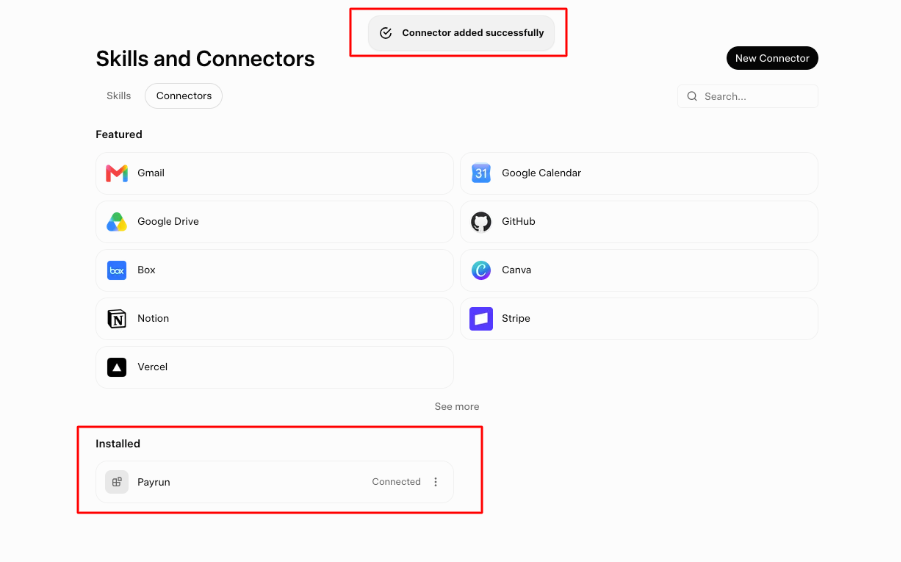
After approval, Grok returns to the Skills and Connectors page.
A confirmation message appears indicating that the connector has been added successfully. The Payrun connector is also listed under Installed with a Connected status.
Enable The Payrun Connector
Before using Payrun in a conversation:
Open a new Grok chat.
Click the + button beside the message box.
Select Connectors.
Turn on Payrun.

Once enabled, Grok can access supported Payrun information during that conversation.
What Grok Can Access
Depending on your Payrun permissions, Grok can access supported information such as:
Employee profile information
Employee directory
Attendance records
Timesheets
Leave records
Holiday information
Projects
Tasks
Productivity reports
Note
Grok inherits your existing Payrun permissions. If you cannot access certain information in Payrun, Grok cannot access it either.
Security And Permissions
The Payrun MCP server uses secure OAuth authentication.
Your Payrun password is never shared with Grok.
The connection provides read-only access.
Grok cannot create, edit, approve, or delete Payrun data.
Access always follows your existing Payrun user permissions.
Disconnect The Payrun Connector
To remove the Payrun connector:
Open Skills and Connectors.
Select the Connectors tab.
Locate Payrun under Installed.
Remove or disconnect the connector.
You can reconnect it at any time by following the same setup process.
Troubleshooting
Authorization Failed
Verify that you are signed in to your Payrun account and repeat the authorization process.
Connection Failed
Remove the connector and create it again using the correct MCP server URL:
https://mcp.payrun.app/v2/connect
Payrun Does Not Appear Under Installed Connectors
Refresh the Skills and Connectors page. If the connector still does not appear, recreate the connector using the correct server URL.
Grok Cannot Access Payrun Data
Make sure the Payrun connector is enabled for the current conversation and verify that your Payrun account has permission to access the requested information.
Frequently Asked Questions
Which Payrun plans support the MCP server?
The Payrun MCP server is available only for Payrun Pro and Payrun Ultimate subscriptions.
Does Grok need my Payrun password?
No. Authentication is completed securely through Payrun using OAuth.
Can Grok modify Payrun data?
No. The Payrun MCP server provides read-only access.
Do I need an API key?
No. The connection only requires the Payrun MCP server URL and OAuth authorization.
Does Grok have access to all Payrun data?
No. Grok only has access to information your Payrun account is already authorized to view.