How To Approve An Expense Claim
 Noah Parker
25 Jun 2026
Expense claim approvals allow managers and authorized approvers to review submitted expenses before reimbursement. Payrun provides a simple approval workflow that enables administrators to review expense details, approve valid claims, and update their statuses.
Prerequisites
Before approving an expense claim, ensure that:
You have permission to manage expense claims.
An employee has submitted an expense claim.
The expense claim status is Submitted.
You have reviewed the supporting information and documentation.
Step 1: Open The Expenses Module
From the left navigation menu:
Click Finance.
Select Expenses.
The Expenses page displays all expense claims and their current statuses.

Step 2: Locate The Submitted Expense Claim
Review the Status column and identify claims marked as Submitted.
Only submitted expense claims can be approved.

The expense information displayed includes:
Claim title
Employee name
Amount
Submission date
Current status
Step 3: Open The Action Menu
Locate the expense claim you want to review.
Click the three-dot menu under the Actions column.

Several options become available, including:
Edit
View details
Approve
Reject
Delete
Step 4: Select Approve
Click Approve from the action menu.
Payrun opens the approval window.

Step 5: Review The Approval Details
The approval window displays the following information:
Employee name
Claimed amount
Approved amount
Comment field
The approved amount is automatically populated with the claimed amount.
Review the amount carefully before approving the claim.
Step 6: Enter Comments If Necessary
The Comment field is optional.
You can add notes such as:
Approved after receipt verification.
Expense validated by department manager.
Reimbursement approved.
Comments help maintain approval records and provide additional context.
Step 7: Approve The Expense Claim
Click the Approve button.

Payrun processes the request and updates the expense claim status.
Verify The Approval Status
After approval:
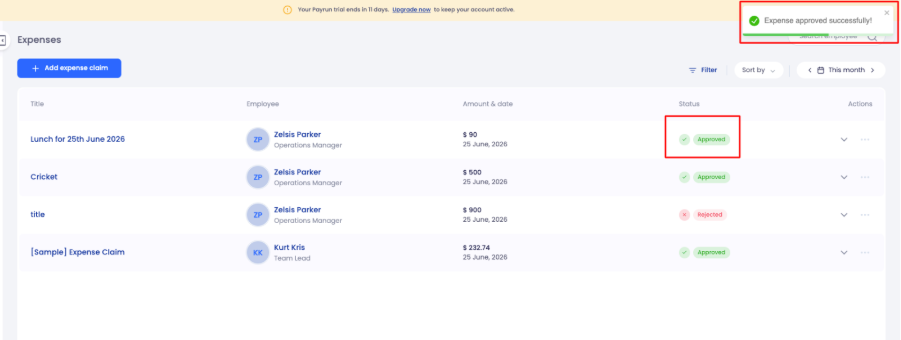
A success notification appears.
The expense status changes from Submitted to Approved.
The claim becomes visible as an approved expense in the Expenses list.
Result
The expense claim has been successfully approved. The approved amount is recorded, and the expense status is updated accordingly.
Best Practices
Review supporting documents before approval.
Verify the claimed amount against receipts.
Add comments for exceptional approvals.
Approve claims promptly to avoid reimbursement delays.
Confirm the employee and expense details before approval.
Next Steps
After approving an expense claim, you can:
View approved expenses.
Review expense history.
Generate expense reports.
Reject incorrect submissions.
Monitor reimbursement requests.